
Workflow History and Logs
Open a workflow's Enrollment History to see which path a contact took and the steps that ran. History is available for 30 days.
Open Enrollment History
Enrollment History is available from any workflow in Automation.
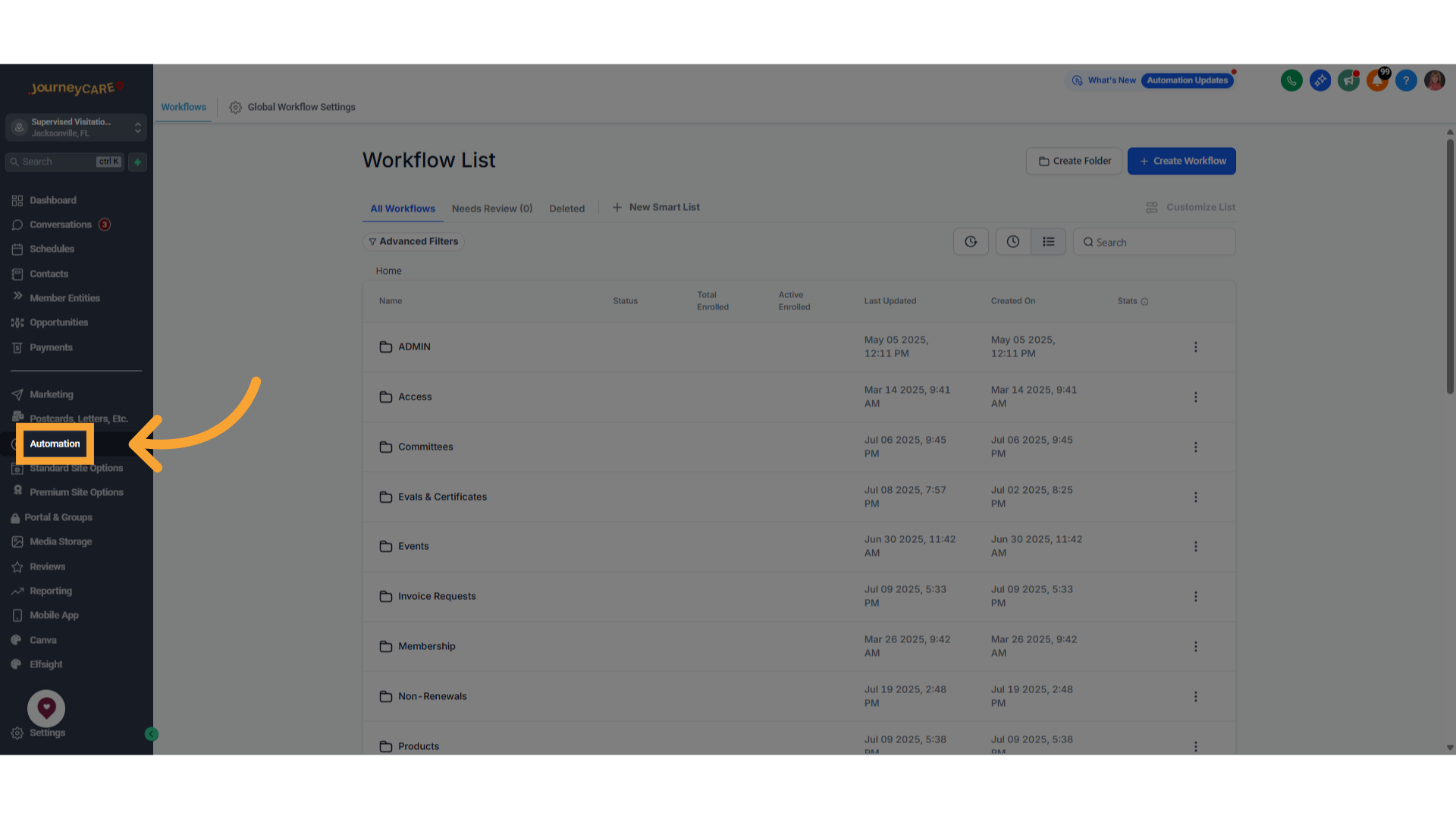
In the left navigation, click Automation.
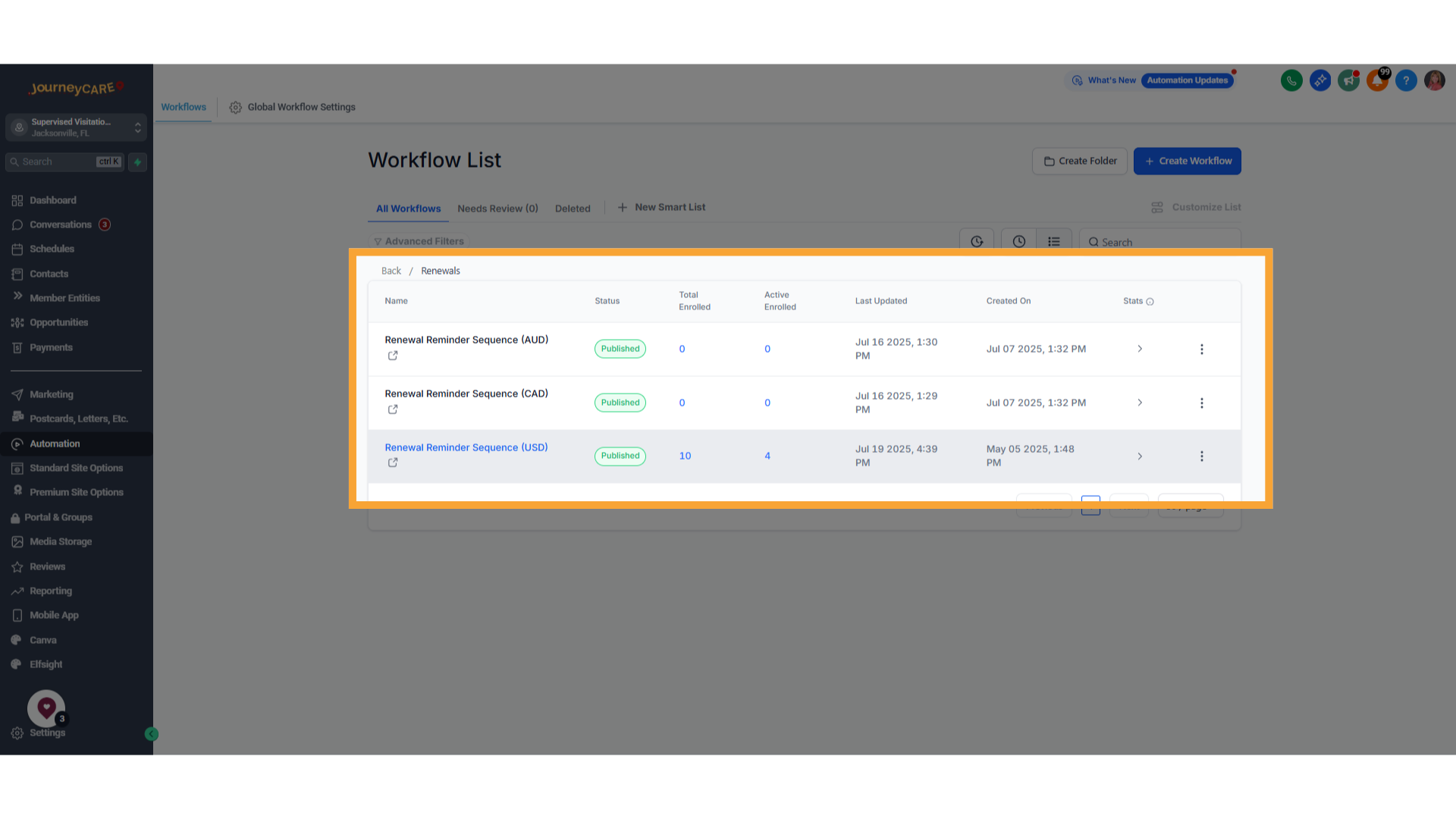
Open the workflow you want to review.
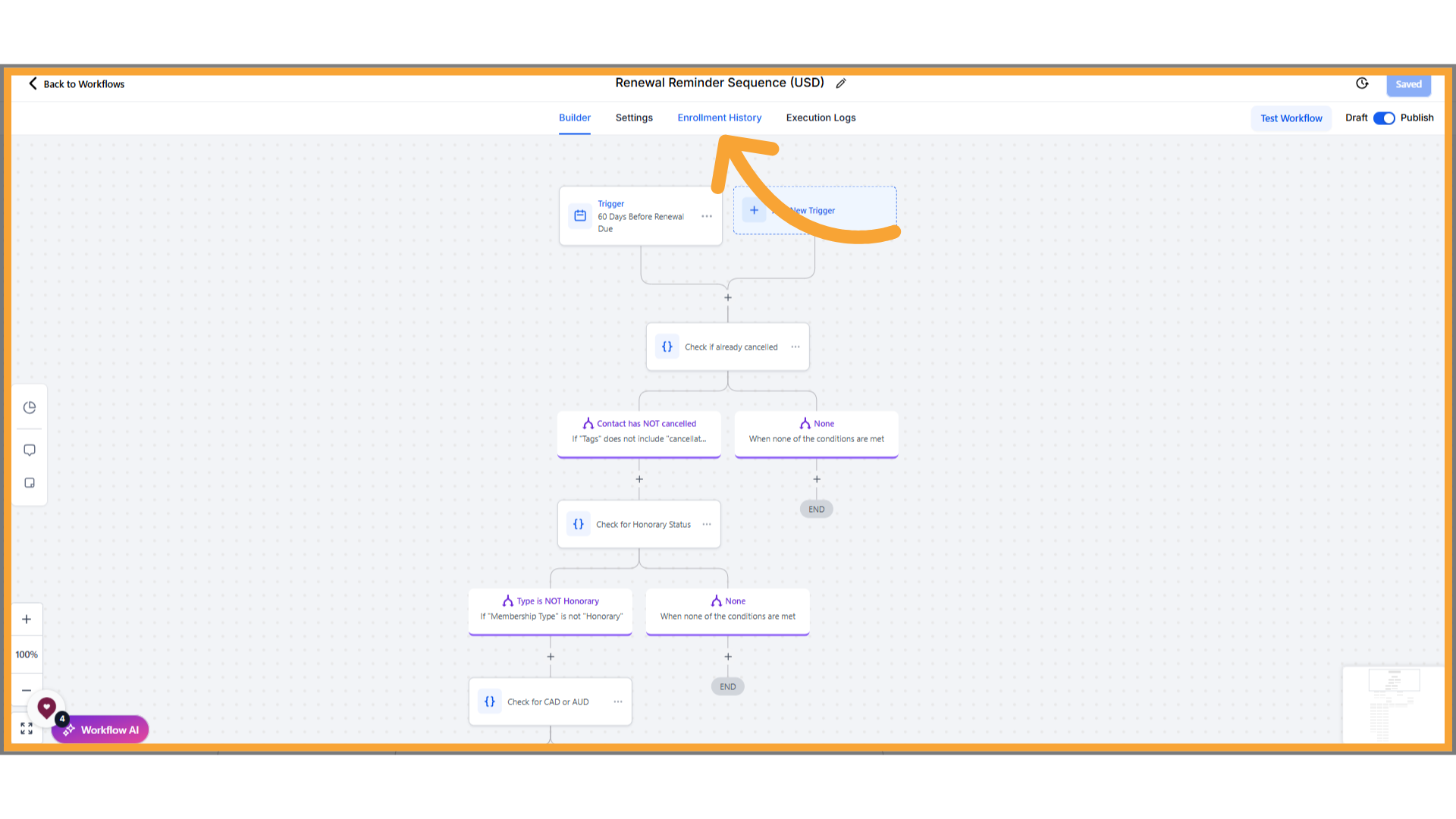
Click the Enrollment History tab.
From here you can search for a contact, open their path through the workflow, or open their step-by-step execution log.
View a contact's path
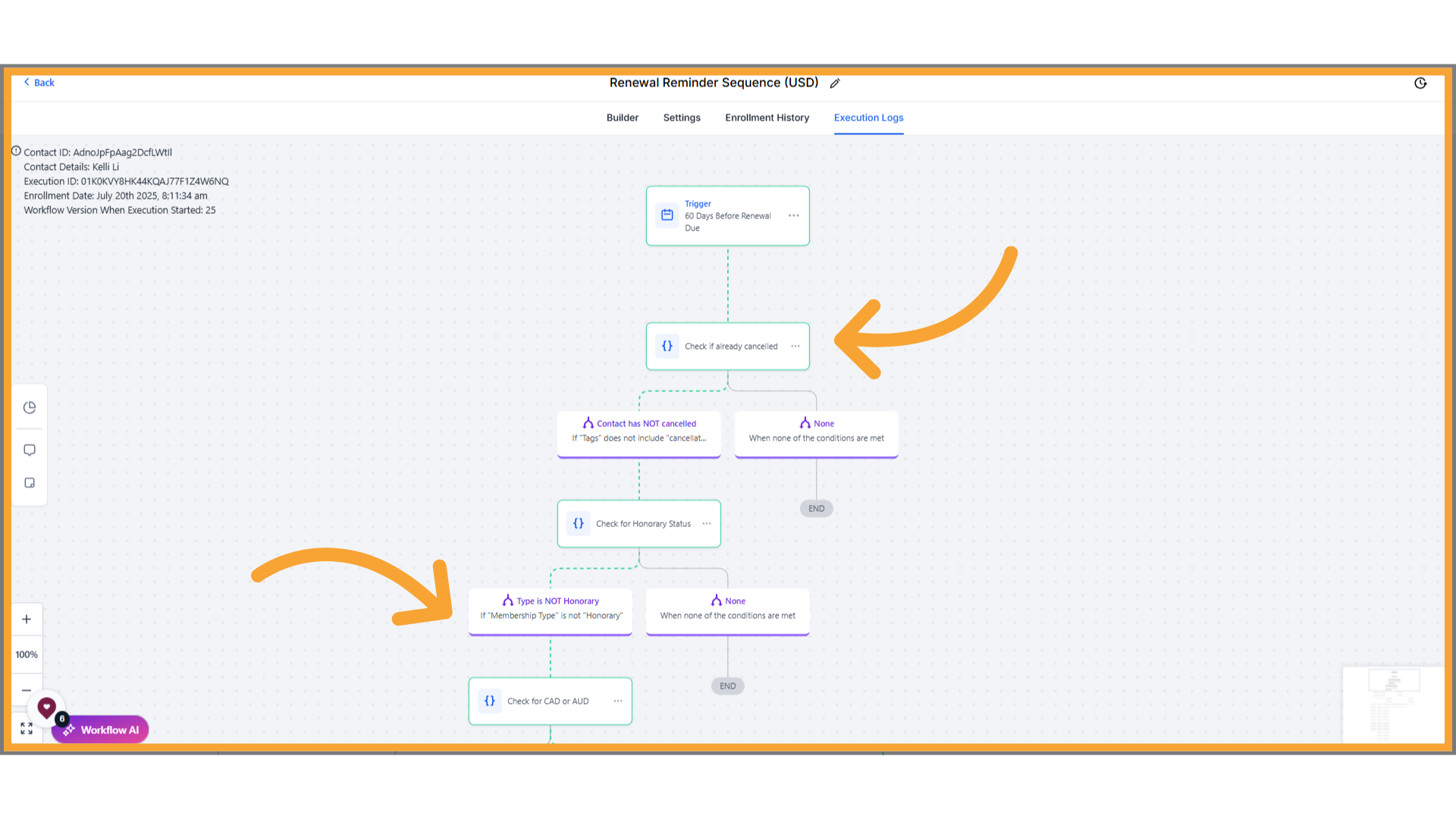
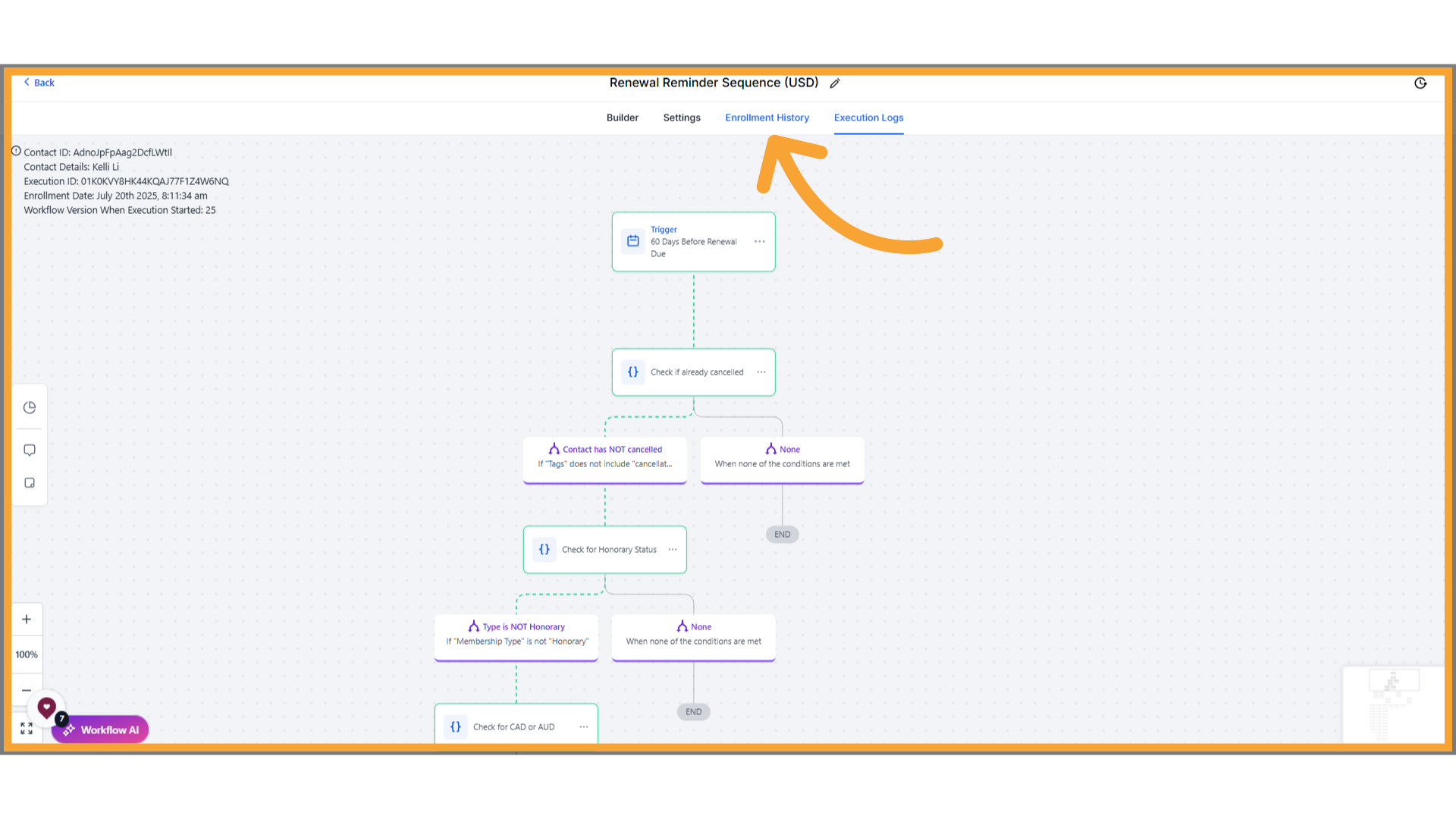
The path view highlights the branches a contact moved through in the workflow.
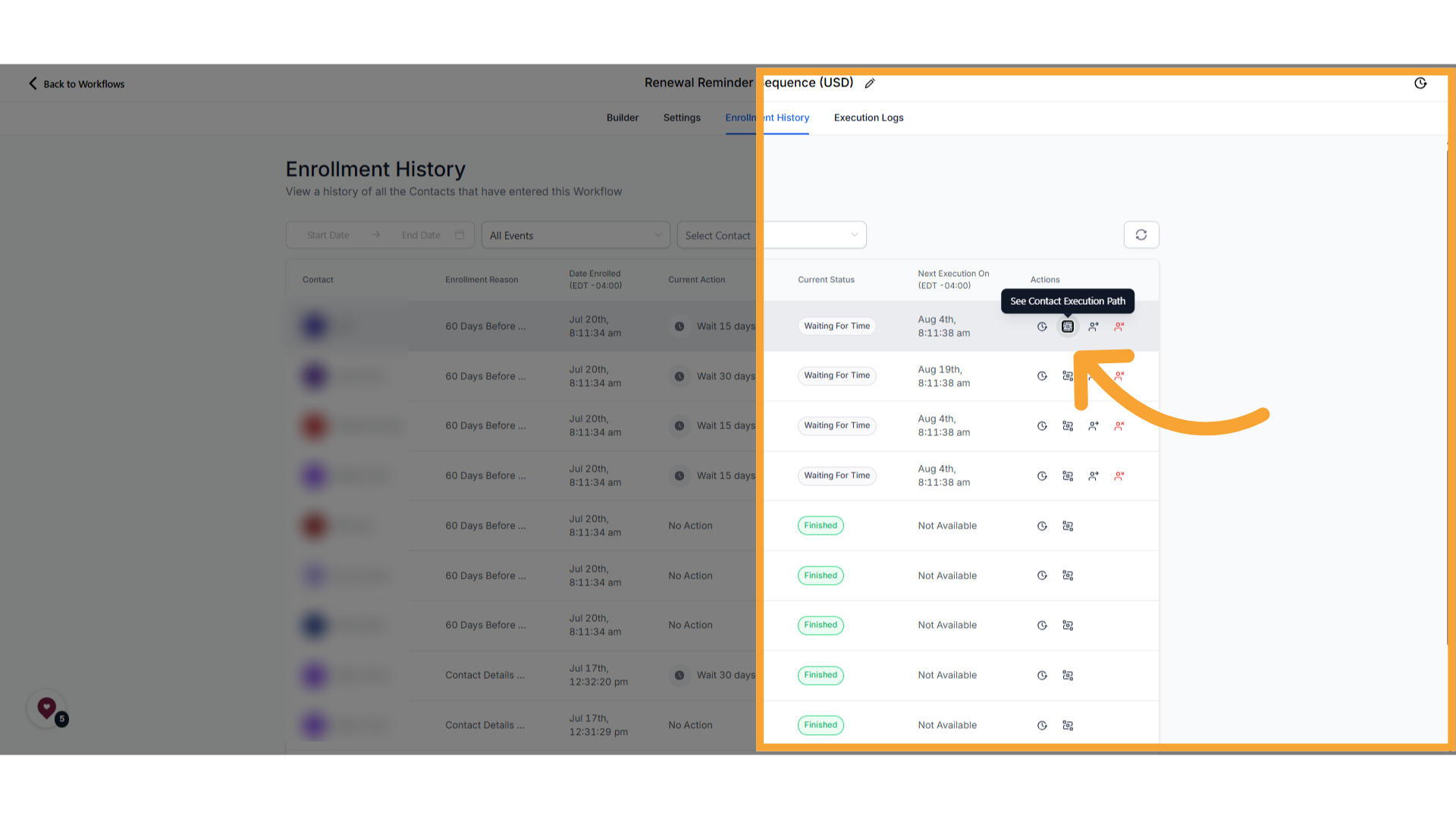
In Enrollment History, click the path icon for the contact.
Review the contact's path. The path they took is highlighted in flashing green.
Click Enrollment History to leave the path view and return to the list.
View execution steps
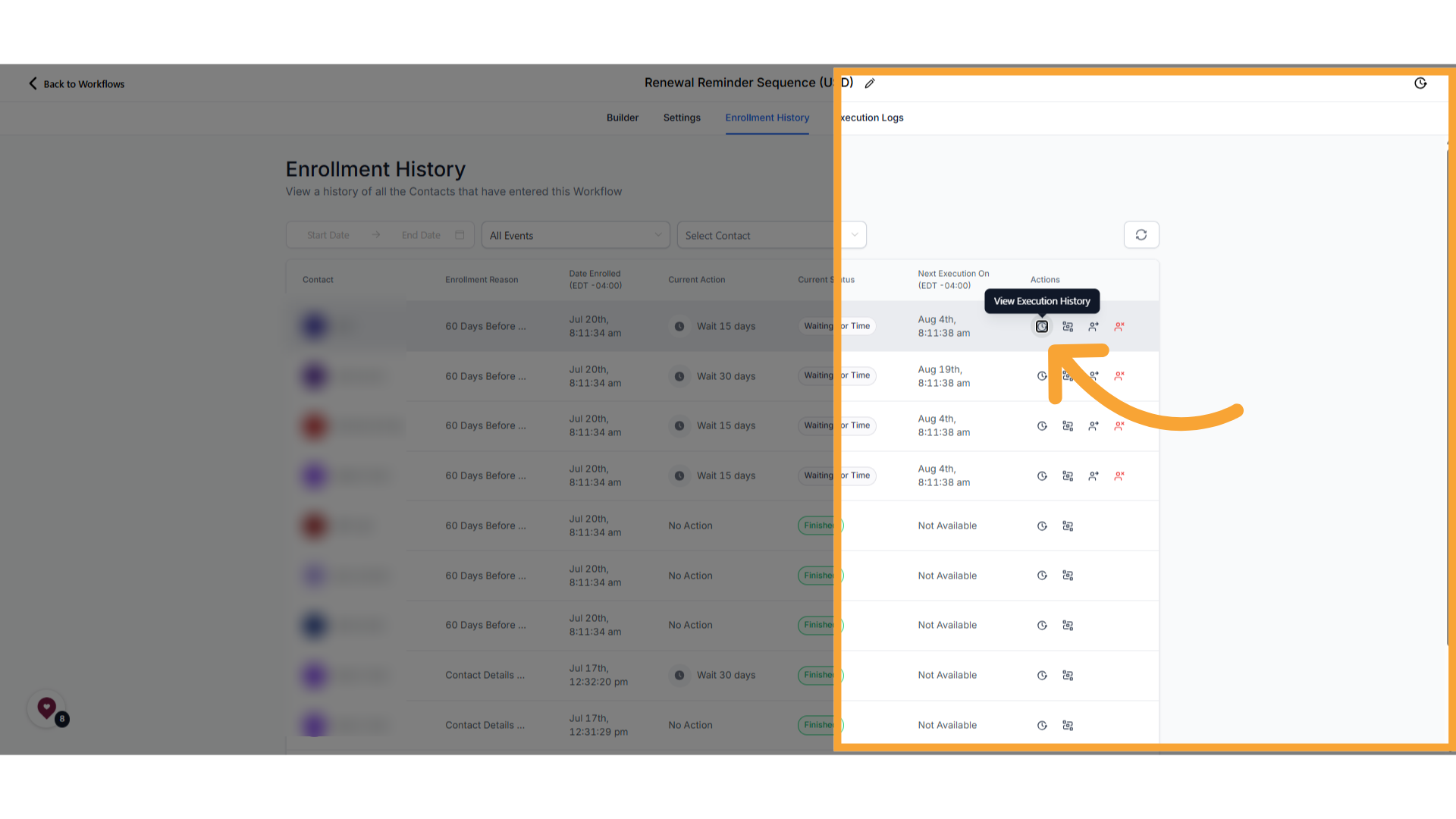
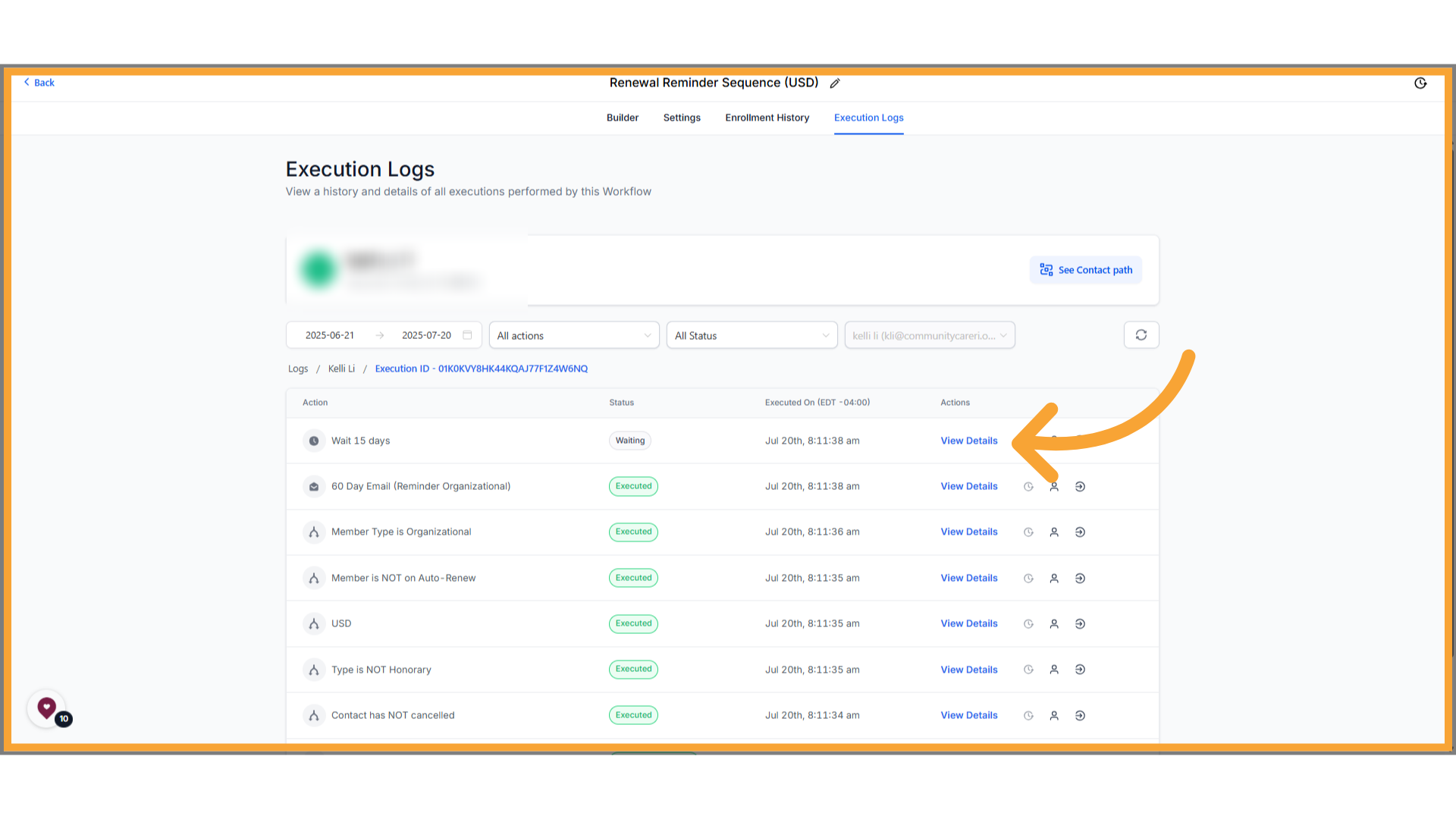
The history icon opens the contact's steps in list format on the Execution Logs tab.
In Enrollment History, click the history icon (clock) for the contact.
On the Execution Logs tab, review the list of steps.
Click View Details on a step when you need more information about that step.
Search and history limits
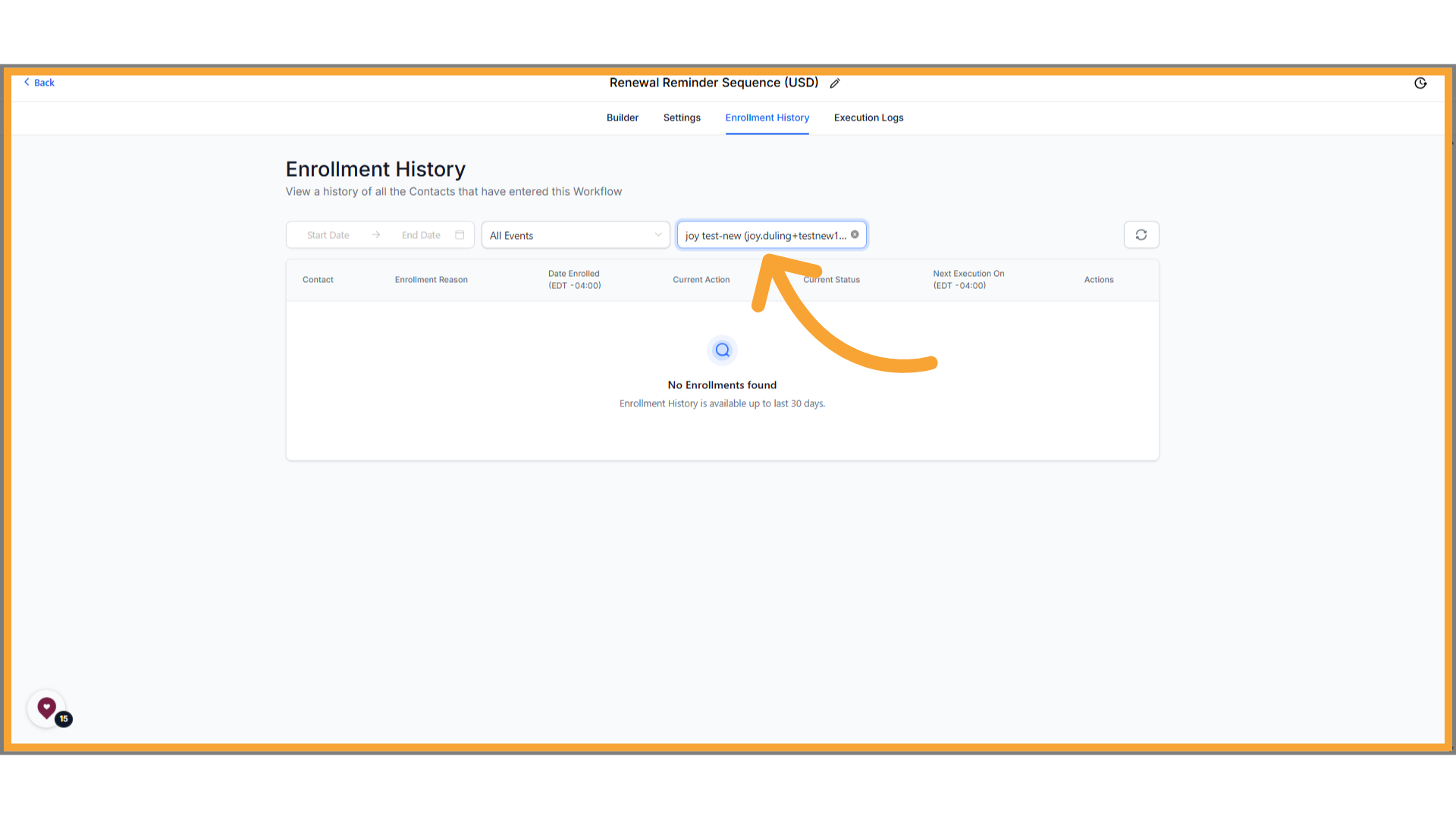
You can search Enrollment History for a specific contact. History only appears here for 30 days.
If it has been longer than 30 days, or if the person has never been through the workflow, you will see No Enrollments Found.
Use the updated execution logs
Execution Logs show the actions a contact experienced and make errors, action names, and execution details easier to review.
In Automations, open Workflows.
Open a workflow and select Execution Logs.
Use View Details for an execution when you need information about a specific action.
When an action has an error, its status or View Details link is highlighted. Opening a row highlights that row while you review its details.
The Action column uses the action name you assigned. Hover over the action name to see its action type. In the filter list, actions used in the workflow appear before other actions.
Open an execution from message details
Use the message-details path when you are investigating a workflow execution from a conversation.
Open Conversations.
Open the conversation and select the affected message.
Open the message details.
Under Workflow, select the workflow link.
JourneyCARE opens Execution Logs with Execution Details loaded for the contact and execution.
Use updated Enrollment History tools
Enrollment History now provides pagination and a highlighted contact path for reviewing how a contact moved through the workflow.
Enrollment History and Execution Logs support 10, 25, or 50 rows per page.
Use Highlight Contact Path from Enrollment History or Execution History to open the builder with the contact's path highlighted.
The highlighted path shows errors, skipped nodes, entry and exit status, and whether the contact is still in progress.
Use Go To Action from execution history to open the action in the builder and open its action sidebar.
Understand enrollment and execution statuses
Enrollment History distinguishes how a contact completed or left a workflow.
Workflow Completed: The contact completed the workflow naturally.
Removed by Workflow Action: An action in the current workflow removed the contact.
Removed by External Workflow Action: An action in another workflow removed the contact.
When contacts are merged, Execution Logs can include a Contact Merge entry. In a snapshot-linked workflow, a snapshot refresh can remove contacts waiting on a deleted step; the log entry is labeled Removed by - Snapshot Refresh.
Use date, time, and contact history details
Execution Logs and Enrollment History include updated date controls and navigation for reviewing related contact activity.
Dates use the MMM-DD format, and the time appears when you hover over the date.
Executed On includes the timezone in which the action was performed.
Alongside preset date ranges, you can select a custom start and end date with time for a range of up to 30 days.
Use View Contact History from Execution Logs to review the contact's actions across enrollments for that workflow.
Use View Execution History from Enrollment History or Execution Logs to review execution history for a contact and a specific enrollment.
Clickable breadcrumbs help you move between Contact History, Execution History, and Execution Logs.
Review workflow errors
The workflows list has a Needs Review tab for workflows containing errors. Open it to see which workflows need attention, then open a workflow's execution logs to review and acknowledge the errors.
Open the Needs Review tab on the workflows list.
Select a workflow to open its execution logs.
Review the failed executions, then mark the errors as read to acknowledge them.
For email notification setup and the covered action list, see Workflow Settings.