
You can attach as many images as you like to a single post. Limit the number of images per post when you need faster loading and easier reading.
Add Content to Communities
Content management in communities covers group channels, posts, the home timeline, attachments, comments and likes, and post deletion.
These pieces work together:
Group channels — Topic-based categories inside a community group that organize discussions. Only admins can create channels.
Posts — The main content in a group. Members create rich posts tied to a channel, including text, images, videos, and other attachments.
Home timeline — A hub that shows posts from all members across all channels in the group.
Embedded videos — Posts can host videos from YouTube, Vimeo, Wistia, and Loom.
Attachments — Posts support images, GIFs, and other media files.
Comments and likes — Members comment on posts (including media in comments) and like posts and comments.
Post deletion — Admins and moderators can delete any post that violates community guidelines. Members can delete their own posts and comments.
Create a group channel
Only admins can create channels. Each group can have multiple channels so discussions stay organized by topic.
In the group interface left bar, click Add Channel.
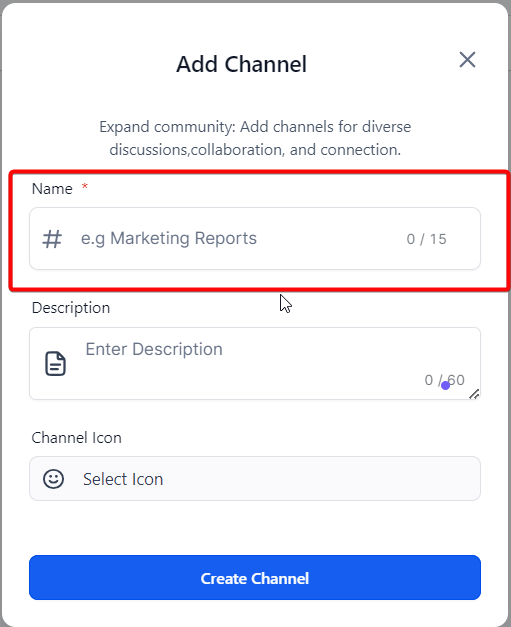
In the modal, enter a Channel Name (up to 15 characters) that states the channel’s purpose, such as “Marketing Reports”.
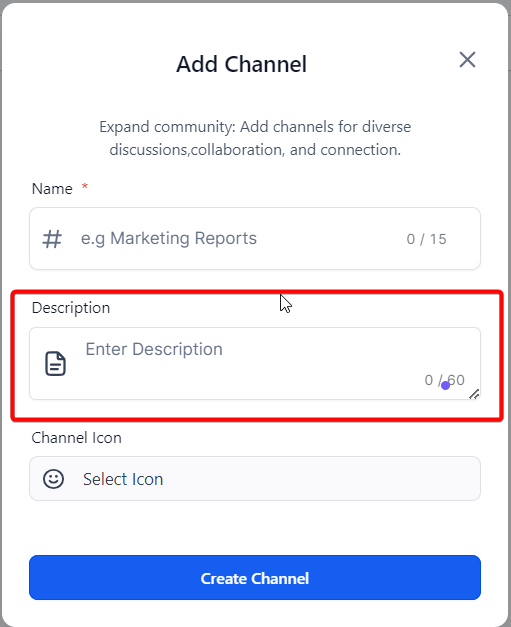
Enter a Channel Description (up to 60 characters) that summarizes the discussion topic, such as “A space for dialogue and sharing around our marketing reports.”
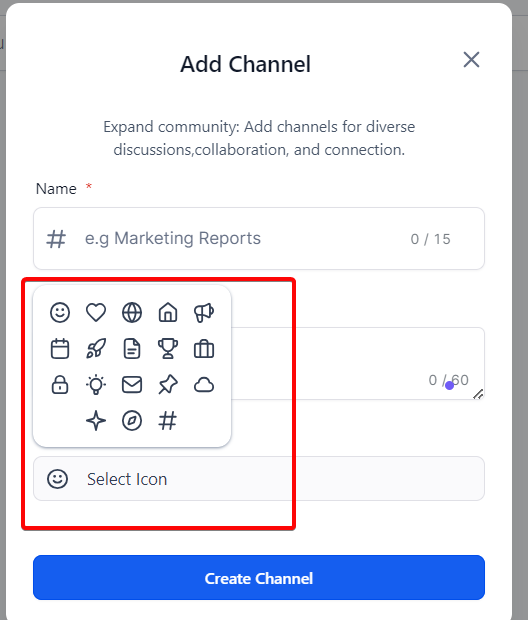
Select a Channel Icon to show next to the channel name.
Create the channel.
Create a post
Members create posts inside a group channel. Create the channel first if it does not already exist.
Open the channel where you want the post.
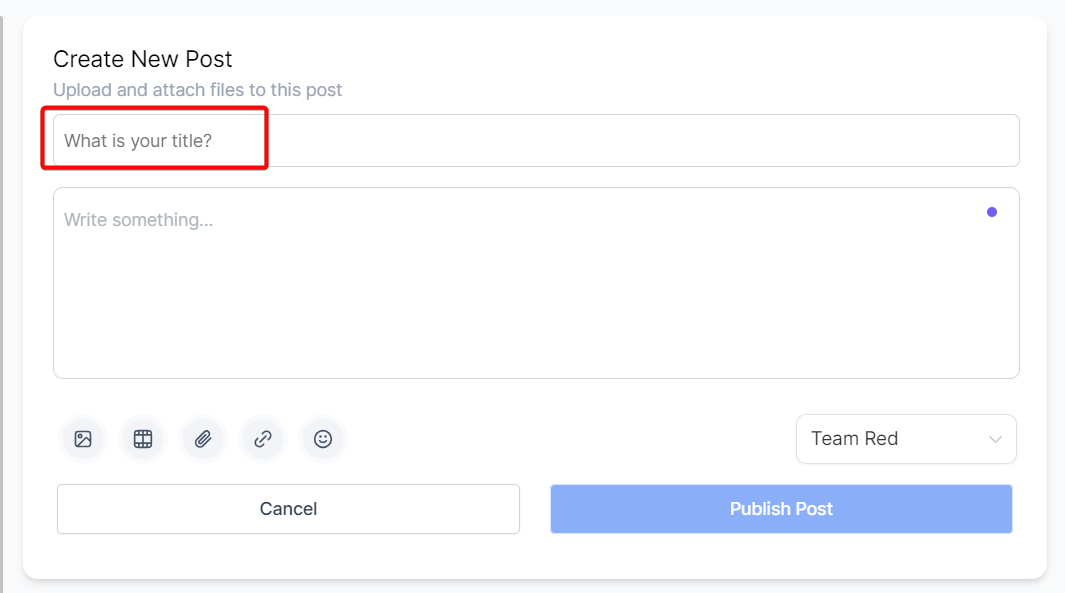
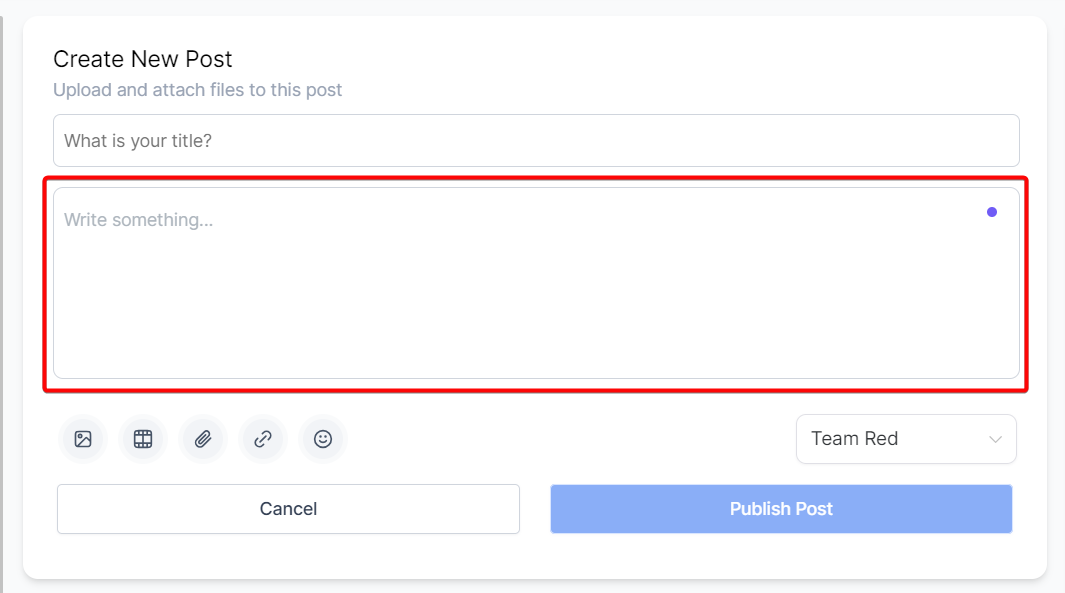
Enter a Post Title that summarizes the topic.
Write the Post Body with your announcement, question, or discussion starter.
Optional: add images, video, file attachments, links, or emojis using the controls below the body.
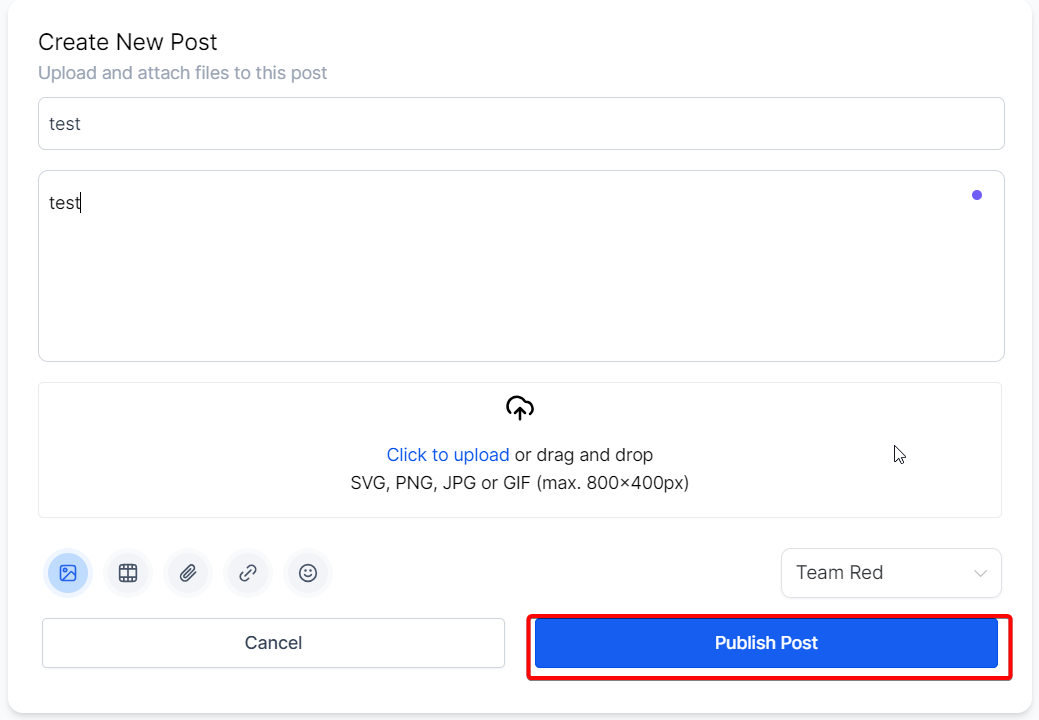
Confirm the target channel in the channel dropdown, or create a new group channel from there.
Click Publish Post.
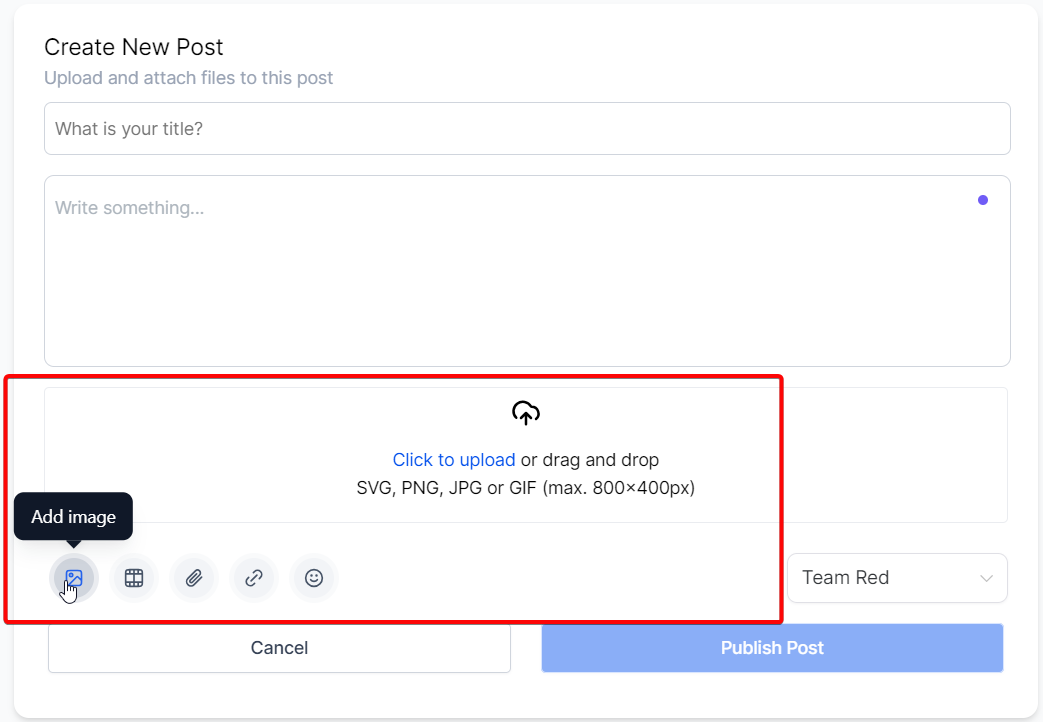
Add an image
Click the upload control or drag and drop an image into the designated area. Supported formats are SVG, PNG, JPG, and GIF, with a maximum size of 800x400px.
Add a video file
Upload an MP4 video by clicking the upload control or dragging the file into the designated area.
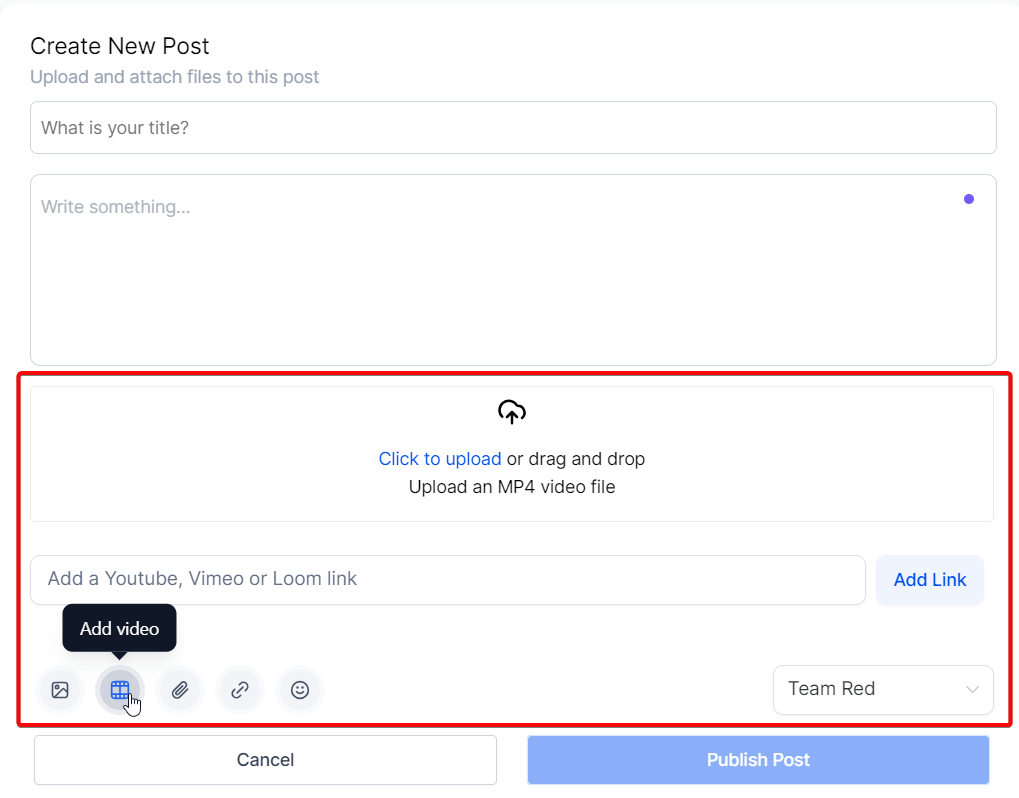
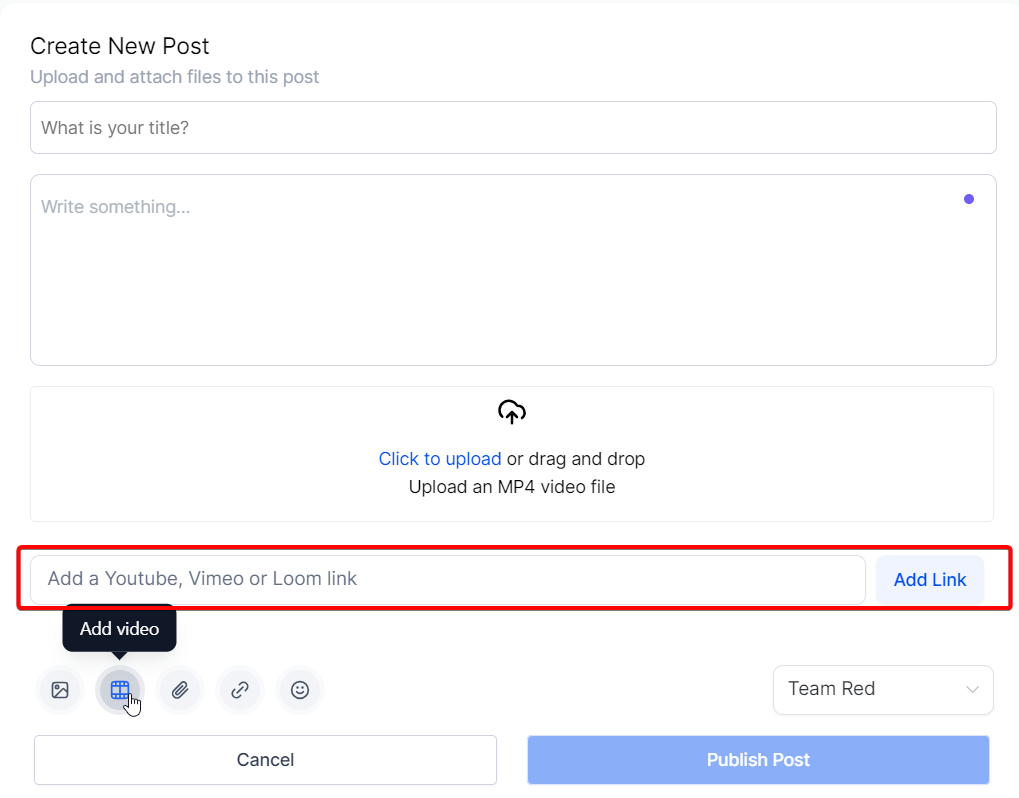
Embed a YouTube, Vimeo, Wistia, or Loom video
Posts can host public videos from YouTube, Vimeo, Wistia, and Loom by share link.
Copy the public share link from the video platform.
In Create Post, click the video icon at the bottom of the post-creation interface.
Paste the share link in the text area.
Click Add Link to embed the video in the post.
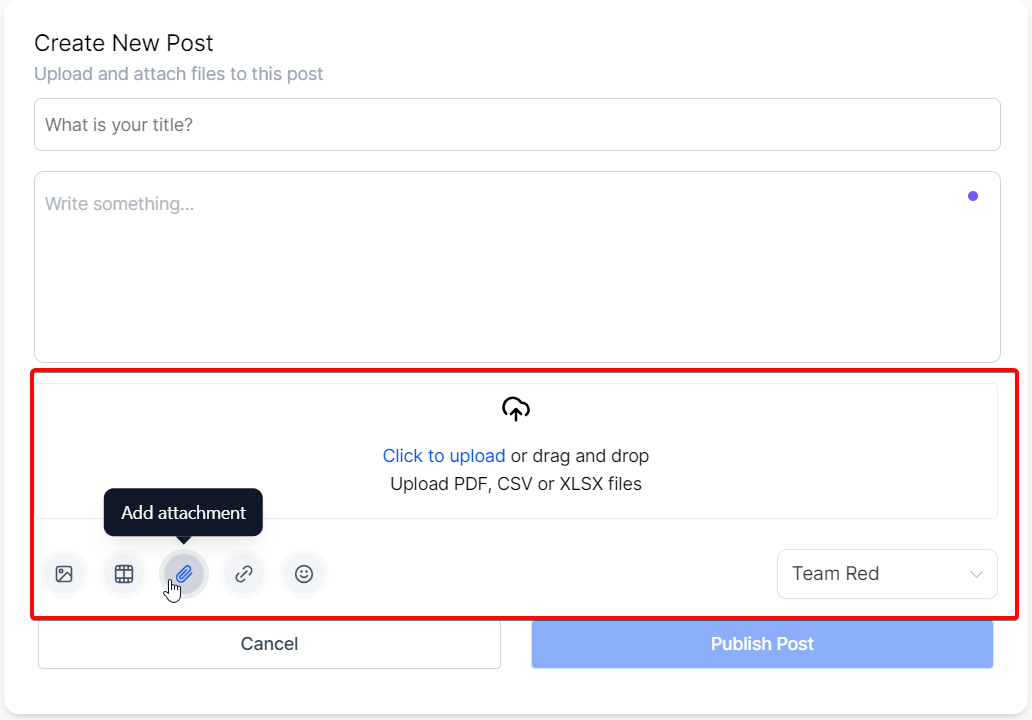
Add a file attachment
Attach files such as PDFs, CSVs, or XLSX files. Click the upload control or drag and drop the file into the designated area.
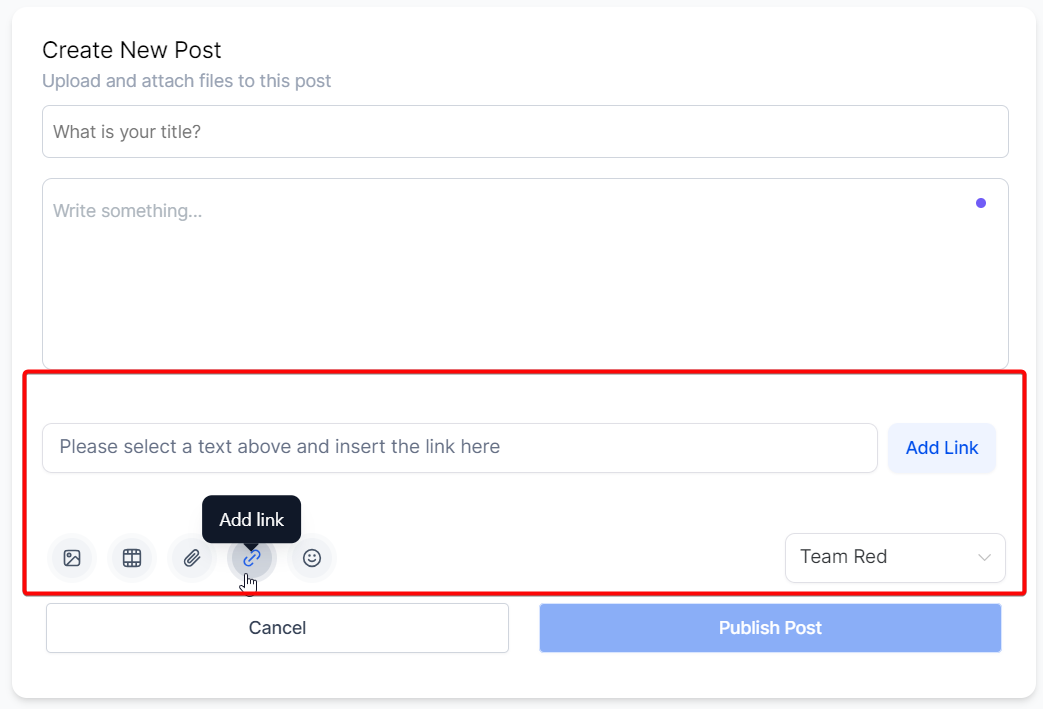
Add a hyperlink
Highlight the text you want to link, paste the URL in the designated area, and click Add Link.
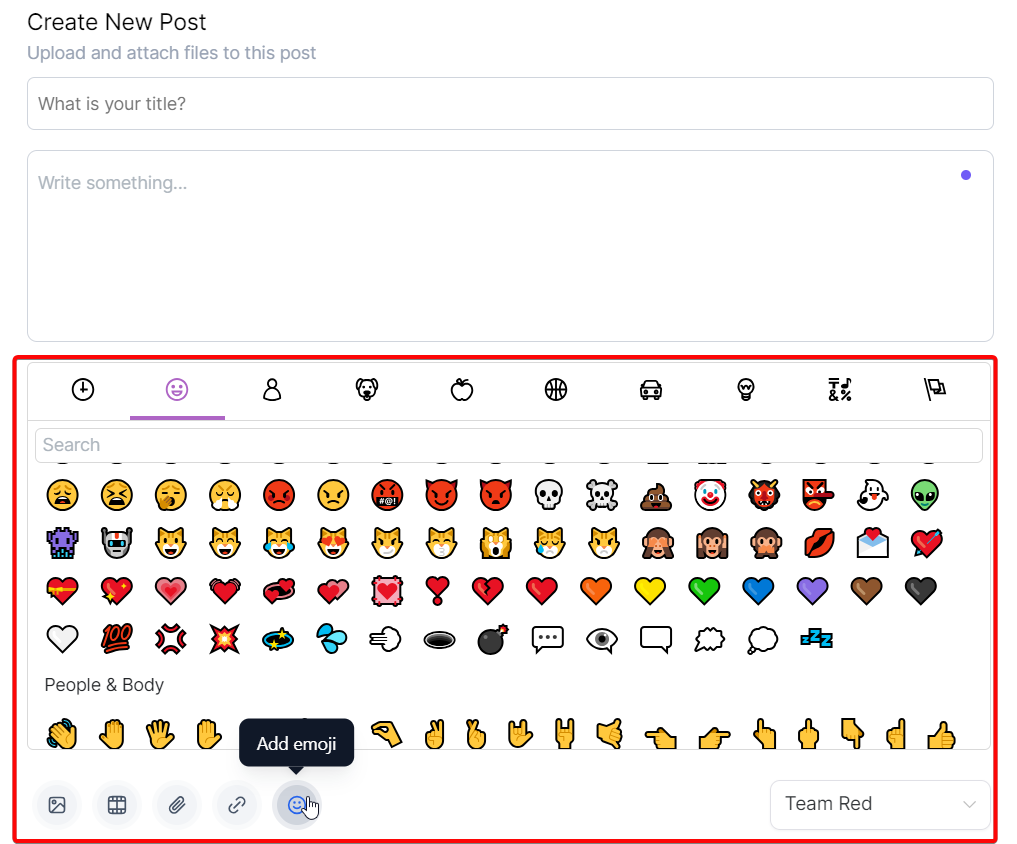
Add an emoji
Search for or select an emoji from the library. Emojis are grouped into standard categories.
Use the home timeline
Open the home timeline to see posts from all members across all channels in one place and stay current on group activity.
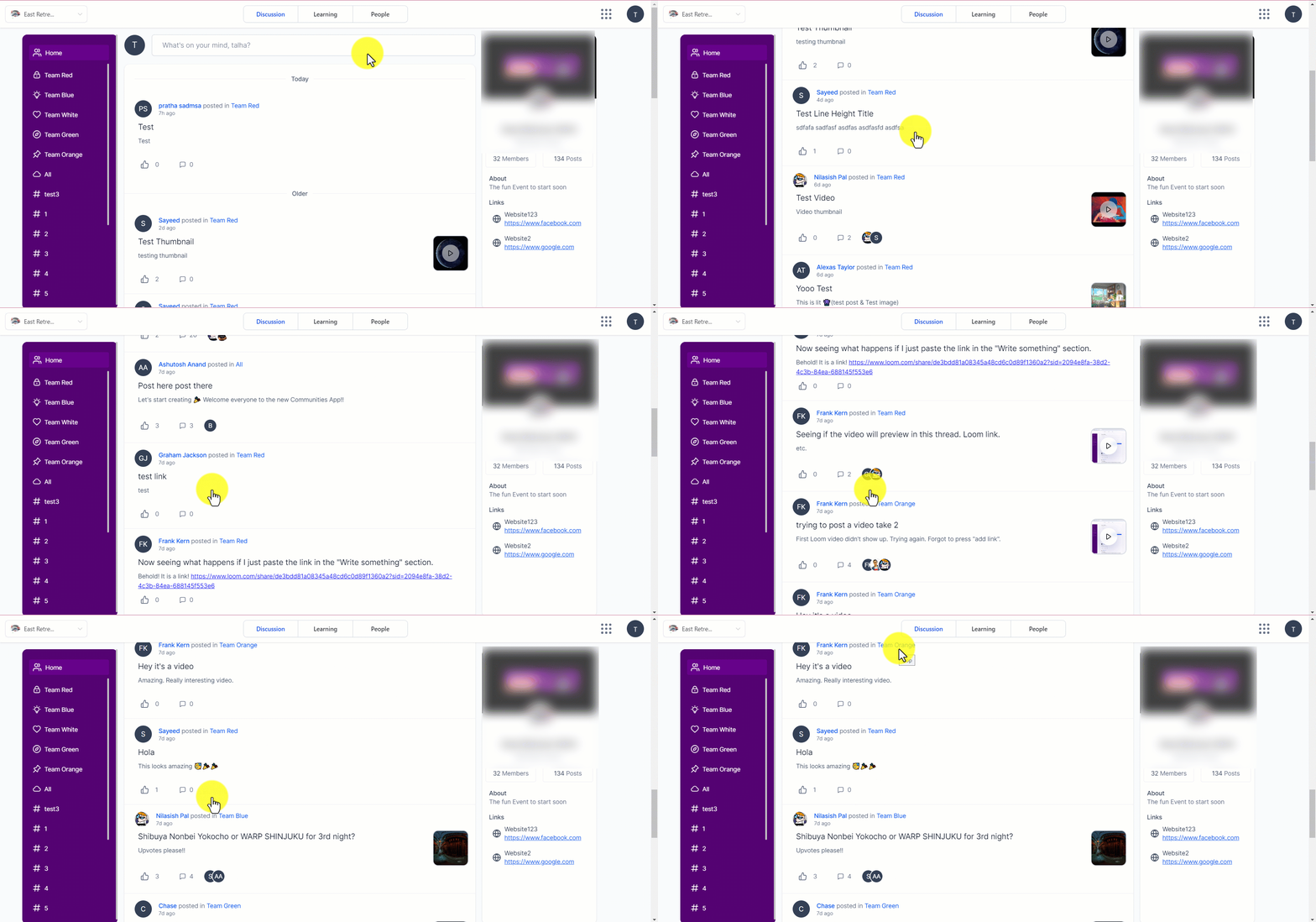
Comment on and like posts
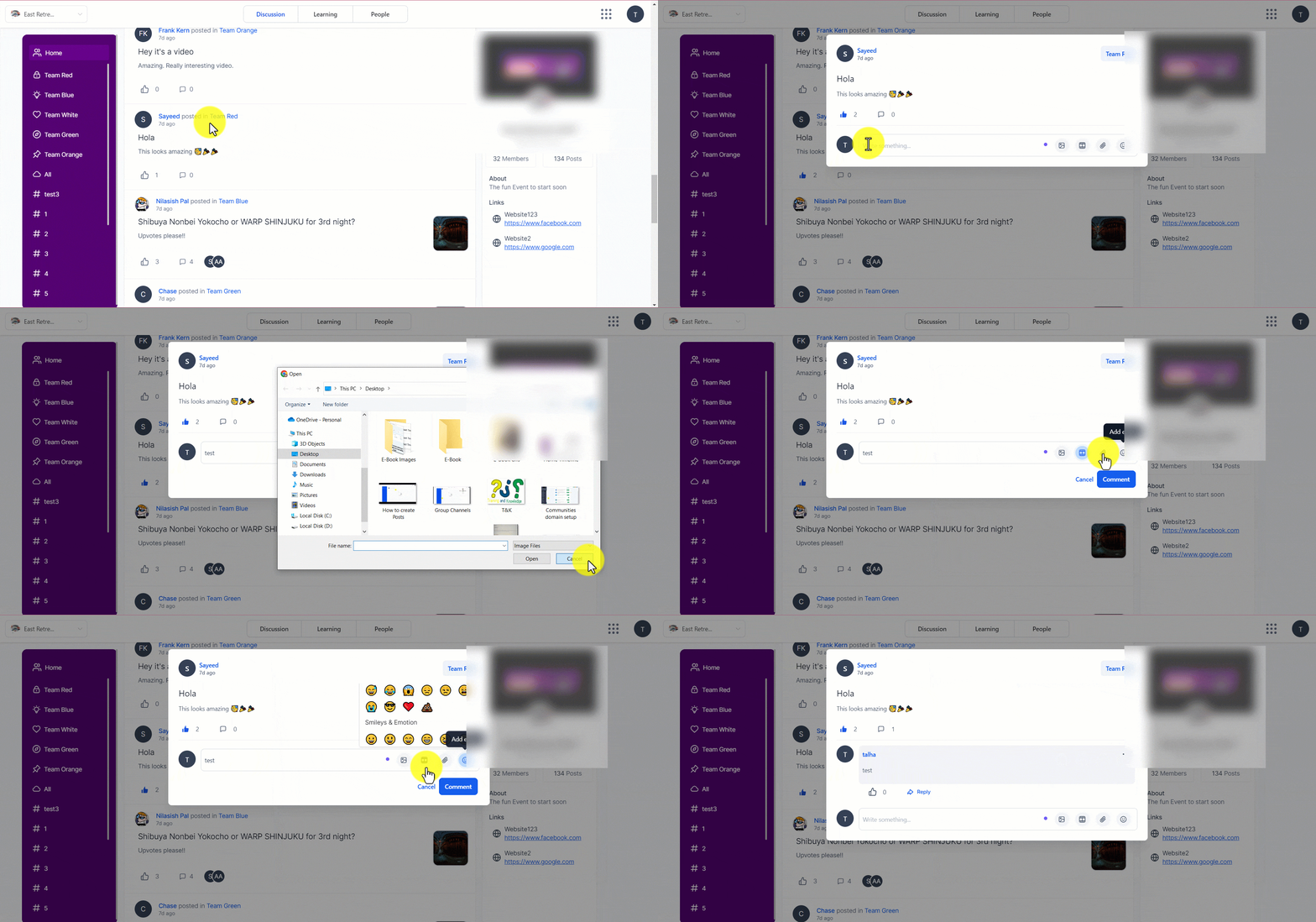
Comments and likes drive engagement on group posts. Comments can include images, videos, and links.
Open the post you want to comment on.
Write your comment in the comment section.
Optional: attach images, videos, or links in the comment.
Optional: reply to a specific comment in the thread.
To like a post or comment, select the thumbs-up icon.
Rich link previews
Paste a supported link, such as a YouTube or Loom URL, directly into a post or comment and a rich preview is generated automatically — no additional setup is needed. Supported videos can be played directly from the feed without opening a new tab.
Delete a post
Admins and moderators can delete any post in the group. Members can delete their own posts and comments. Deletion permanently removes the post from the group.
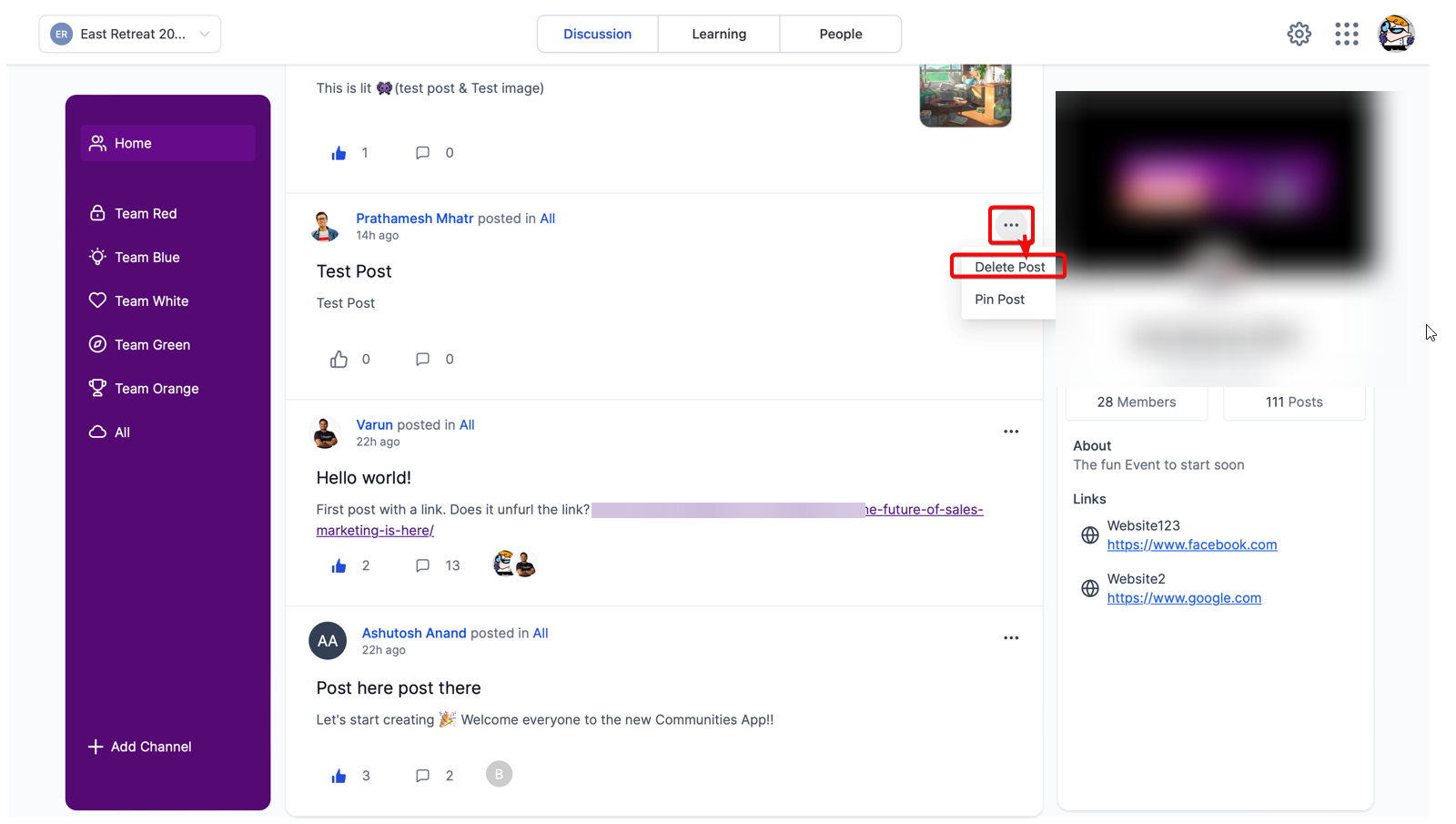
Find the post in the group.
On the right side of the post, click the three-dots icon.
Select Delete Post.
FAQs
How many images can I attach to a single post?
Can I change the title of my post after it has been published?
Yes. Open the post, click the three-dots icon, select Edit Post, and update the title.
What is the maximum size for video files I can upload?
An official file size limit is not defined for this feature. Keep video files below 100MB for better performance; that size is a recommendation, not an official limit.
What happens when I add a hyperlink to my post?
Readers can select the linked text to open the linked URL. Use hyperlinks to point to additional resources without packing the full content into the post body.
Can I use emojis in my post title?
Yes. Use emojis in titles when they support readability for your audience and context.
Was this helpful?
Was this helpful?