
[NEW-BETA] Why are my Event Registrants being marked as DND?
Event registrants are marked as Email DND when an event email — the registration confirmation or reminder — fails to be delivered. The cause to check first is the event's Sender Email: when it doesn't match your organization's domain, receiving providers are likely to block the message, and JourneyCARE automatically marks the registrant as DND.
Why a failed event email marks a registrant as DND
When an email bounces or cannot be delivered, JourneyCARE automatically enables Email DND for that contact. Event confirmations and reminders follow the same rule: a blocked or rejected message switches the registrant's email channel to DND, and JourneyCARE stops sending to that address until the setting is cleared.
Email DND affects the email channel only. A contact marked Email DND can still receive SMS and other communications.
DND can also come from causes unrelated to the sender, including an invalid or outdated address, an unsubscribe, or a spam complaint, so check the delivery reason before changing your event setup. See Understanding Do Not Disturb (DND) Status for what DND means and how to manage it.
Check the event's Sender Email
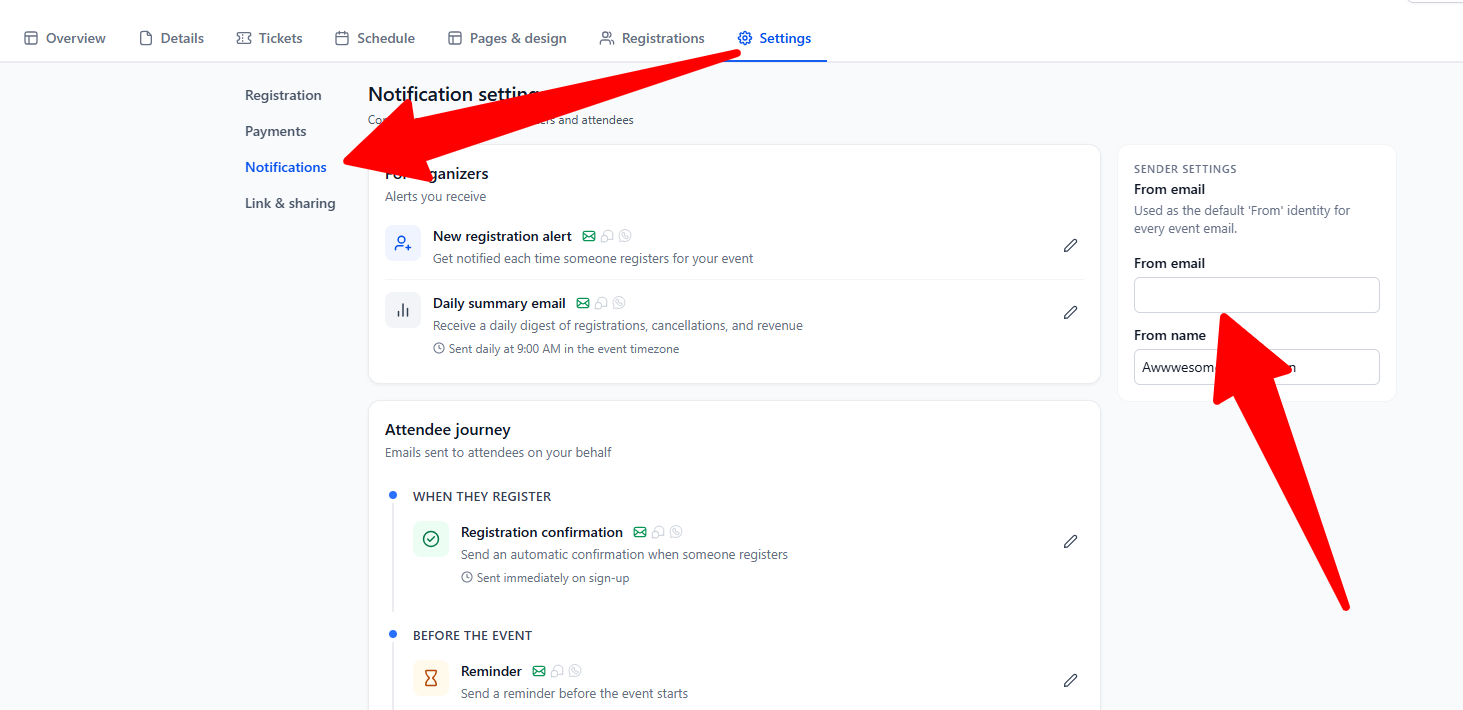
Each event has its own sender settings, and these control the From address on registration confirmation and reminder emails.
Go to Portal and Groups → Events and open the event.
Open the Settings tab.
Open Sender settings.
Check the From email — this is the event's Sender Email.
See Create and manage ticketed and RSVP events for the full event setup workflow.
Use a Sender Email that matches your domain
Set the event's Sender Email to an address on your organization's own domain.
A Sender Email on a personal provider's domain, such as Gmail or Yahoo, fails DMARC alignment when sent through JourneyCARE, and receiving providers may reject the message or reduce its deliverability. The same applies to any domain that doesn't match the domain your organization sends from. A rejected email is a failed delivery, and JourneyCARE automatically marks the registrant's email channel as DND.
Our general campaign guidance follows the same rule: see Email campaign sender settings for why sender addresses must stay on your organization's domain.
Confirm the registrant's DND and delivery reason
Check the contact's DND section to confirm email is the affected channel, then review the delivery reason before clearing anything.
Open the registrant's Contact Record.
Open the DND section and confirm Email is marked DND.
In Contacts, hover the red warning icon on the last email to see why delivery failed.
To find every affected registrant, create a Smart List filtered by Email DND. See Find members who aren't receiving email for the full review workflow.
Fix the sender and restore affected registrants
Update the event's Sender Email to your organization's domain, then clear Email DND on registrants whose addresses are valid.
In the event's Settings → Sender settings, change the From email to an address on your organization's domain and save.
For each affected registrant, open their Contact Record, confirm the email address is correct, and clear the Email DND checkbox.
Clear Email DND only after the sender and the registrant's address are correct. If the underlying problem remains, the next email fails and the registrant is marked DND again.