
Check email statistics
Check open, click, and delivery stats for bulk emails sent from the email builder. You can view statistics for one campaign or for all emails together.
Check statistics for one email
Open the statistics panel for a single email campaign from Email Campaigns.
Go to the Email section.
Choose Email Campaigns.
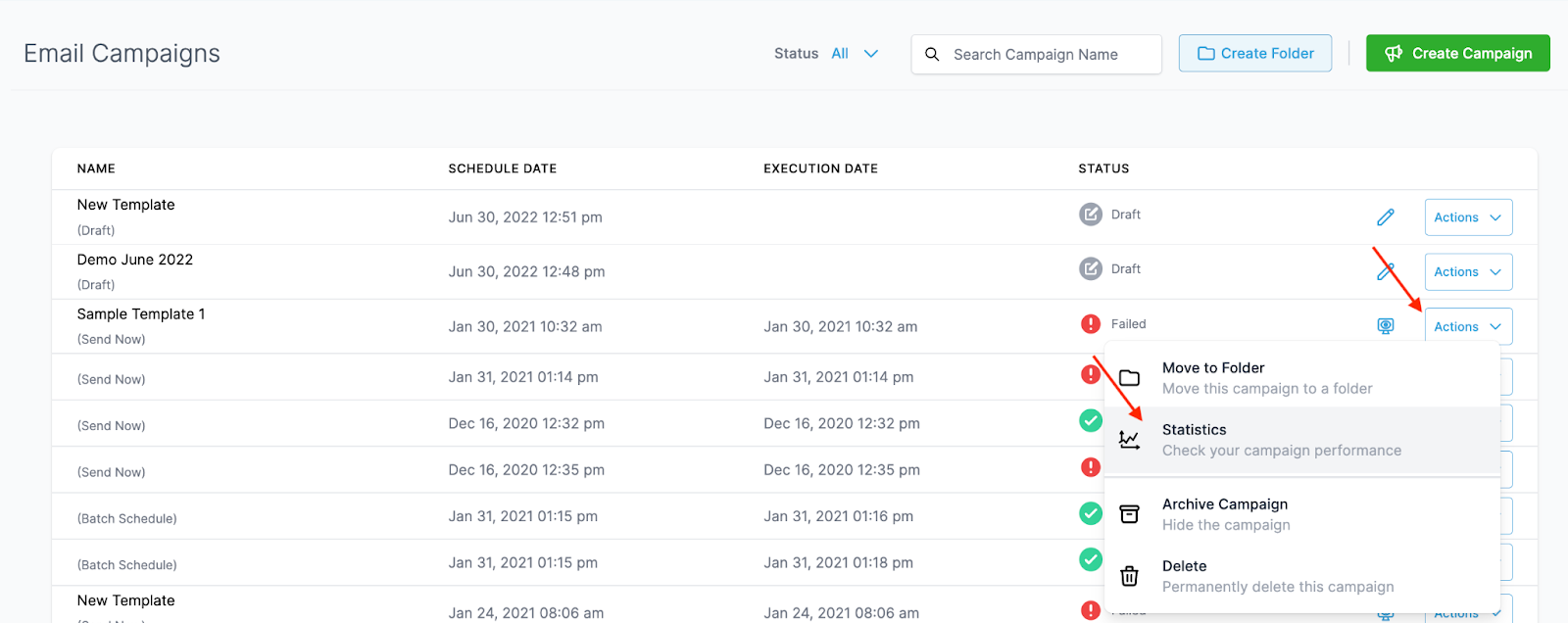
Open the Actions dropdown for the email and select Statistics.
A panel on the right shows the statistics for that email.
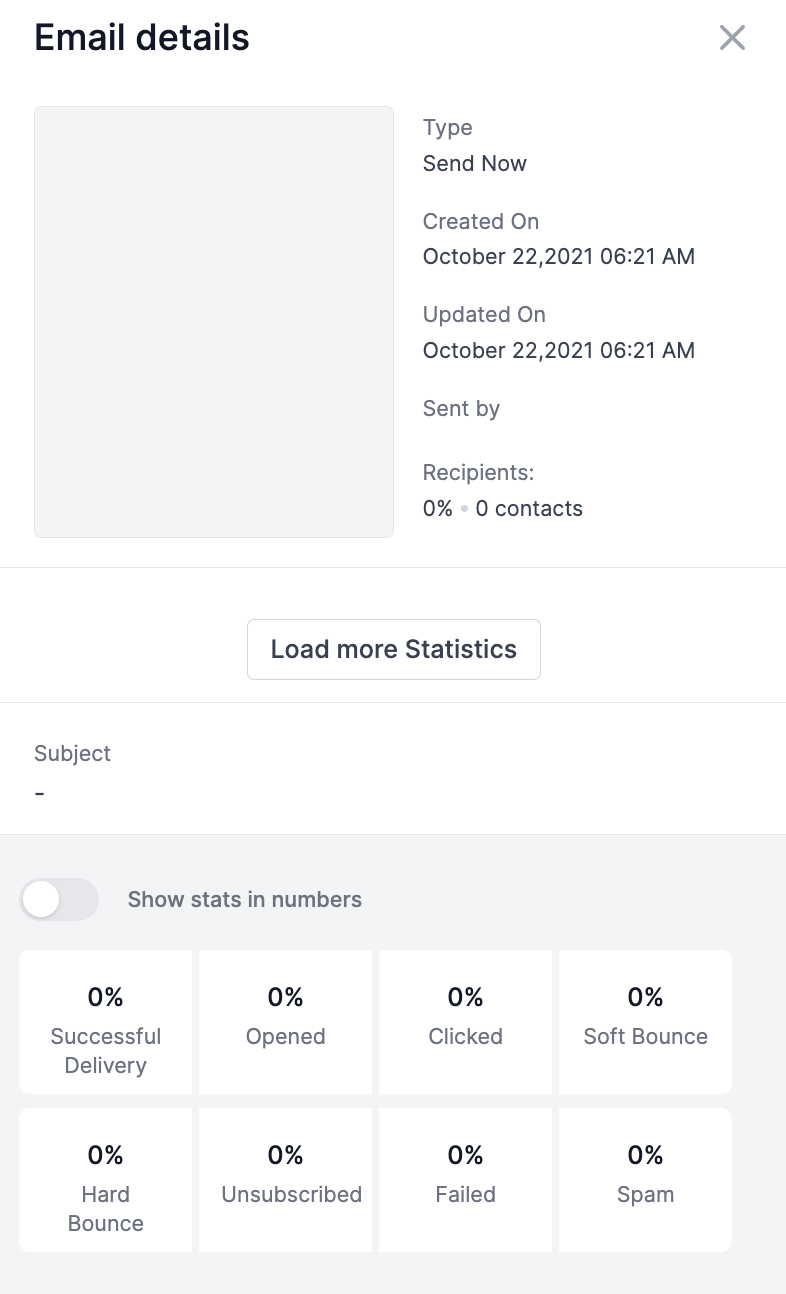
Select Load more Statistics to open detailed results by contact, including statuses such as opened, clicked, and failed.
Check statistics for all emails
Open the aggregate email statistics page from Marketing to review overall performance and drill into each email.
In Marketing, open the Email dropdown and select Campaigns.
Choose Statistics.
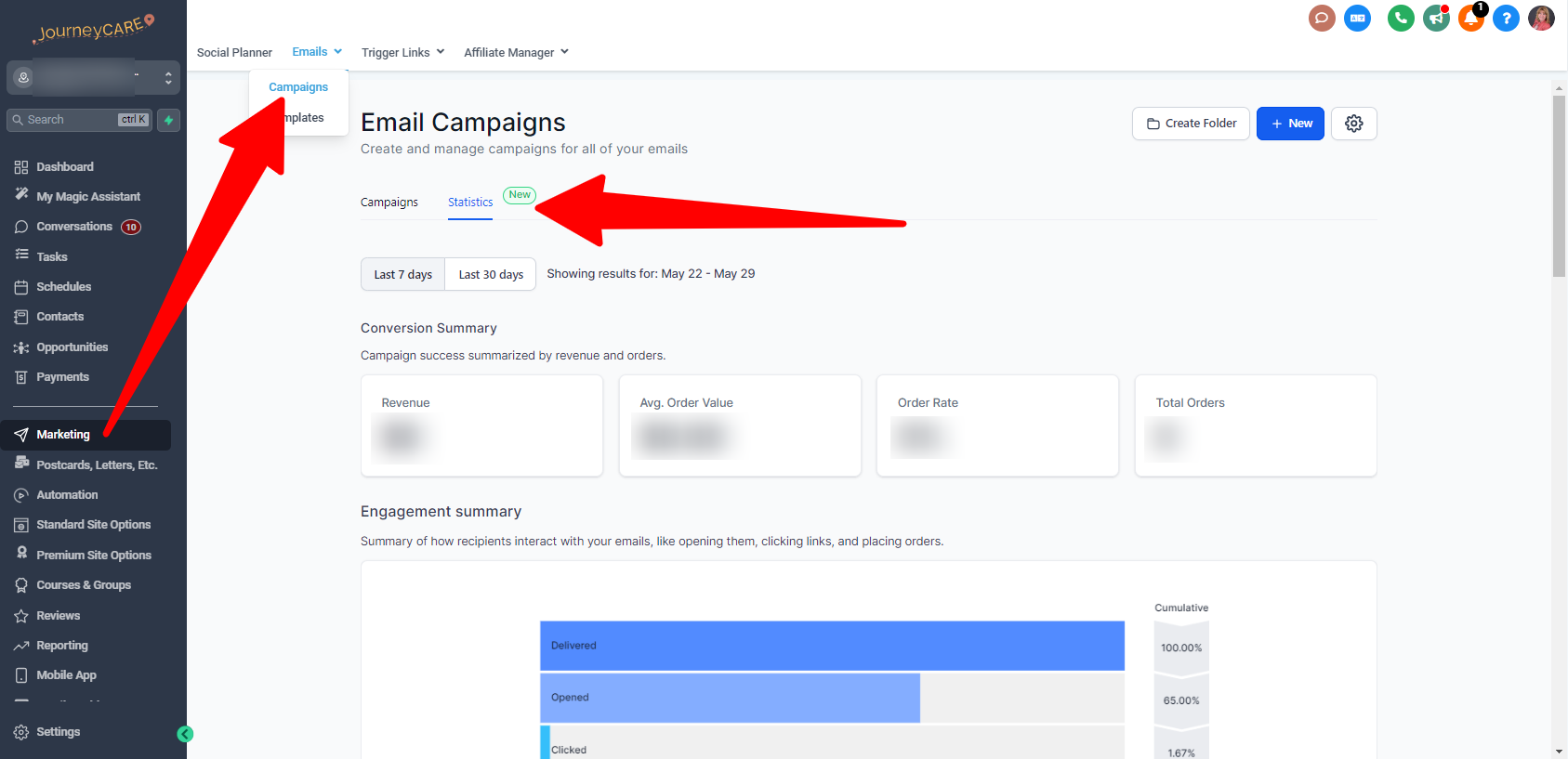
The page shows aggregate statistics. Scroll down to the list of individual emails to see stats for each one.
The aggregate statistics page provides an overview of your organization's email performance, including emails sent, delivery rates, opens, clicks, and other engagement statistics. Reviewing these metrics periodically helps you monitor the overall health of your email communications.