
Send an email to a Smart List
Choose a Smart List as the recipient of an email campaign, or use the Send Email quick action from a contact list view for a simple one-off message. Smart Lists are dynamic: who is on the list is evaluated when the email actually sends, so check the list right before you send.
Before you start
Save the Smart List first. See Create and manage Smart Lists if you still need to build one. Campaigns send from your organization's Account Name and Account Email, so confirm the sender as well. See Email campaign sender settings.
Option 1: Send from the contact list view
Use the quick action when you want a simple email without building a campaign.
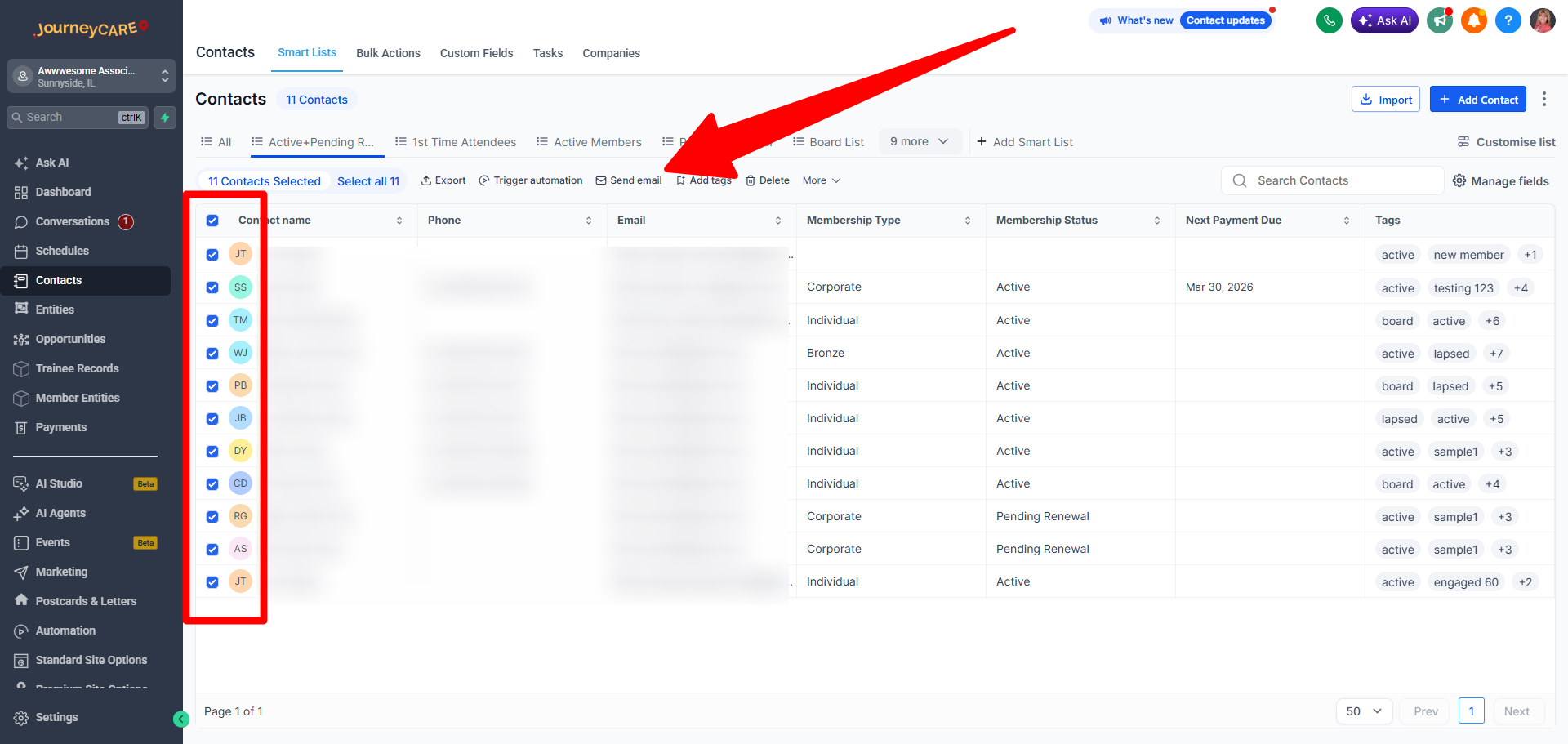
In Contacts, select the people you want to email.
Click the Send Email quick action that appears once contacts are selected.
Option 2: Send a campaign to a Smart List
Use a campaign when you want a designed, trackable broadcast to everyone on the list.
Go to Marketing → Emails → Email Campaigns.
Open the campaign you want to send, or create one with Create Campaign.
Click Send and Schedule.
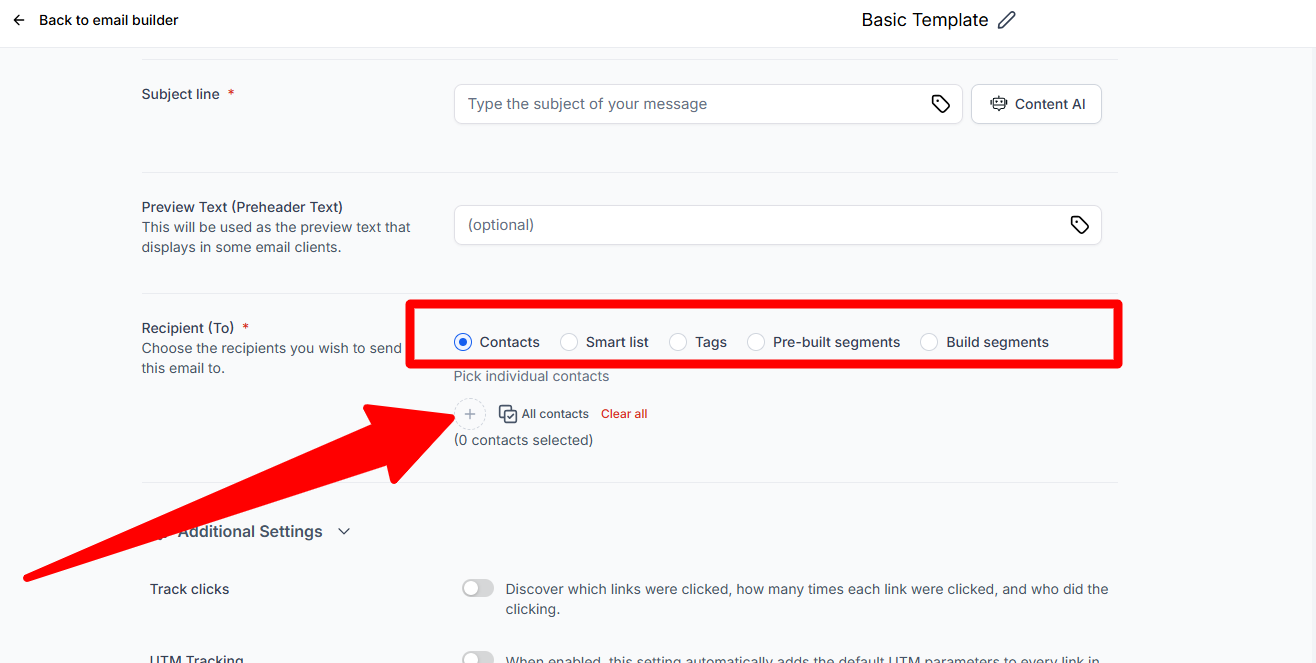
In the recipient options, select Smartlist, then click the + sign and choose your saved list.
Choose a delivery method: Send Now, Schedule, Batch Schedule, or RSS Schedule. See Email delivery methods for how each one works.
Send the email, or save the schedule. The full workflow is in Send or schedule an email campaign.
Confirm the intended audience
Smart List membership is generated at send time, not when you schedule the campaign. Contacts who meet the filter when the email sends are included, and contacts who no longer meet it are left out. Open the Smart List just before sending to see exactly who is on it at that moment.
Send a test email to yourself before the full send. Afterward, review opens, clicks, and delivery results in Check email statistics.
Other recipient options
The same screen also lets you send to Contacts, Tags, Pre-built segments, or a segment you build on the spot with Build segments. The choices that appear under the + sign change depending on which option you select.