Workflow History & Logs
1. Introduction
This guide provides a step by step walk through of workflow history
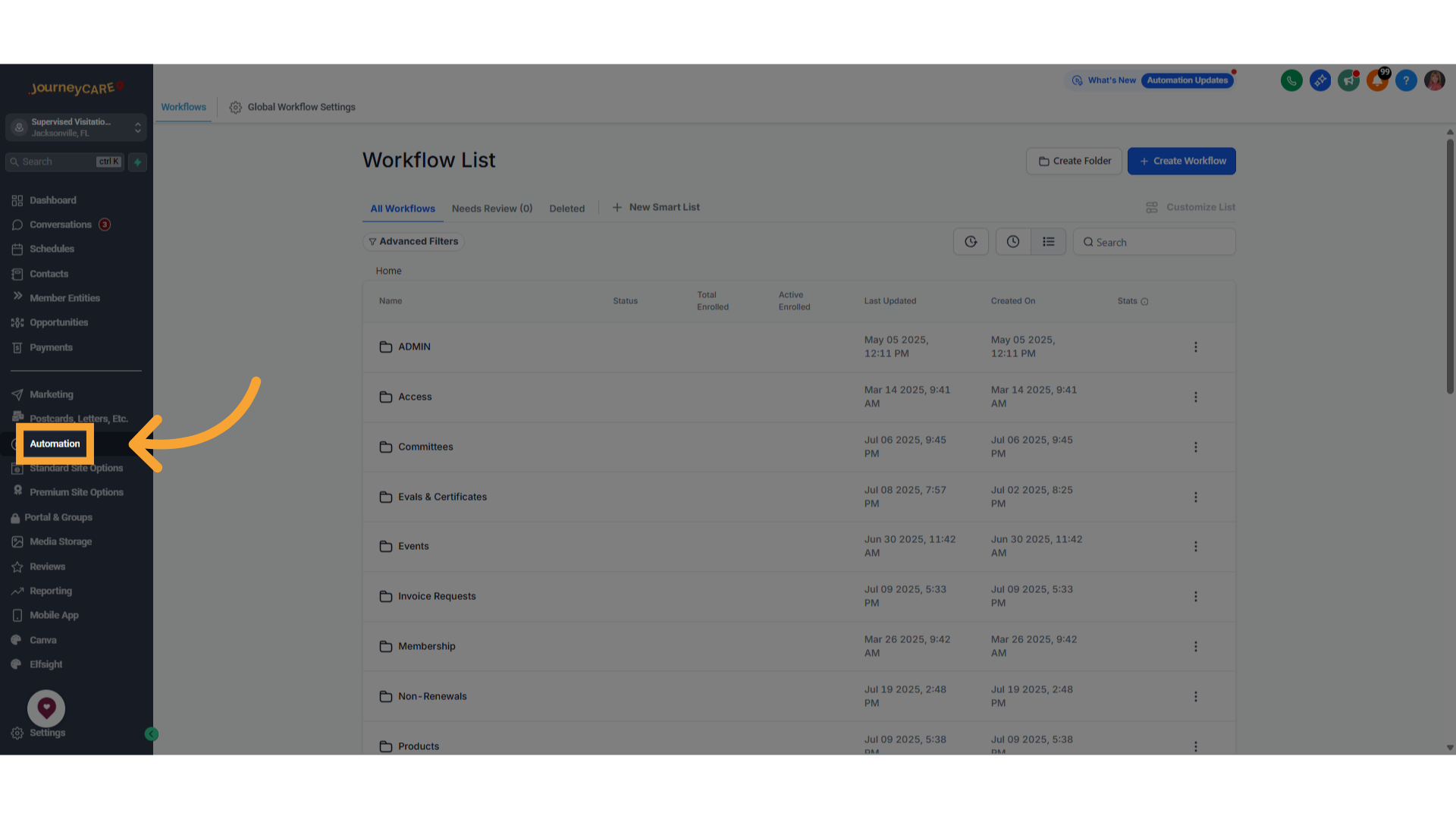
2. Click "Automation"
Click on "Automation" in the left column.
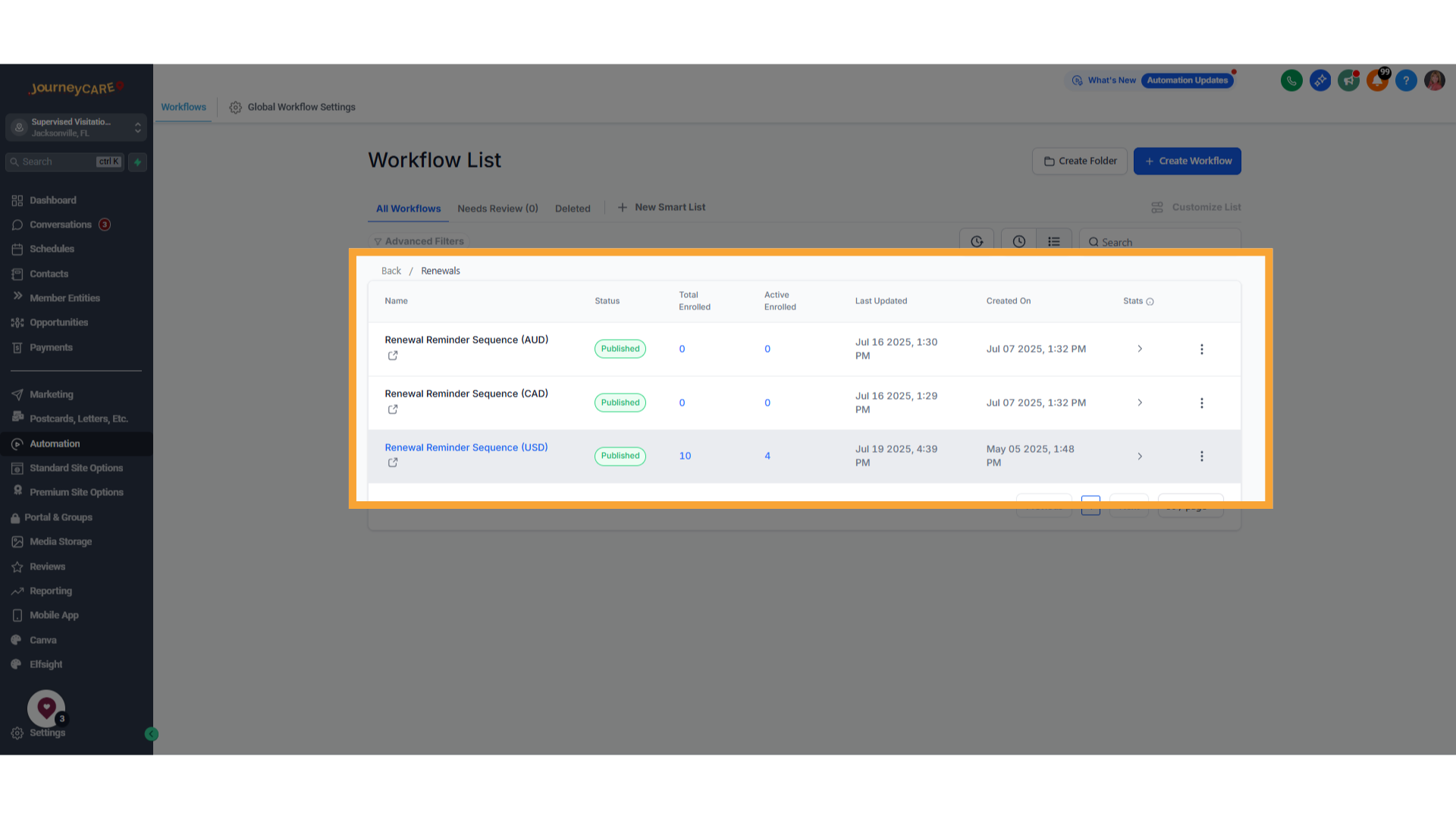
3. Click a Workflow
Choose any workflow you'd like to explore.
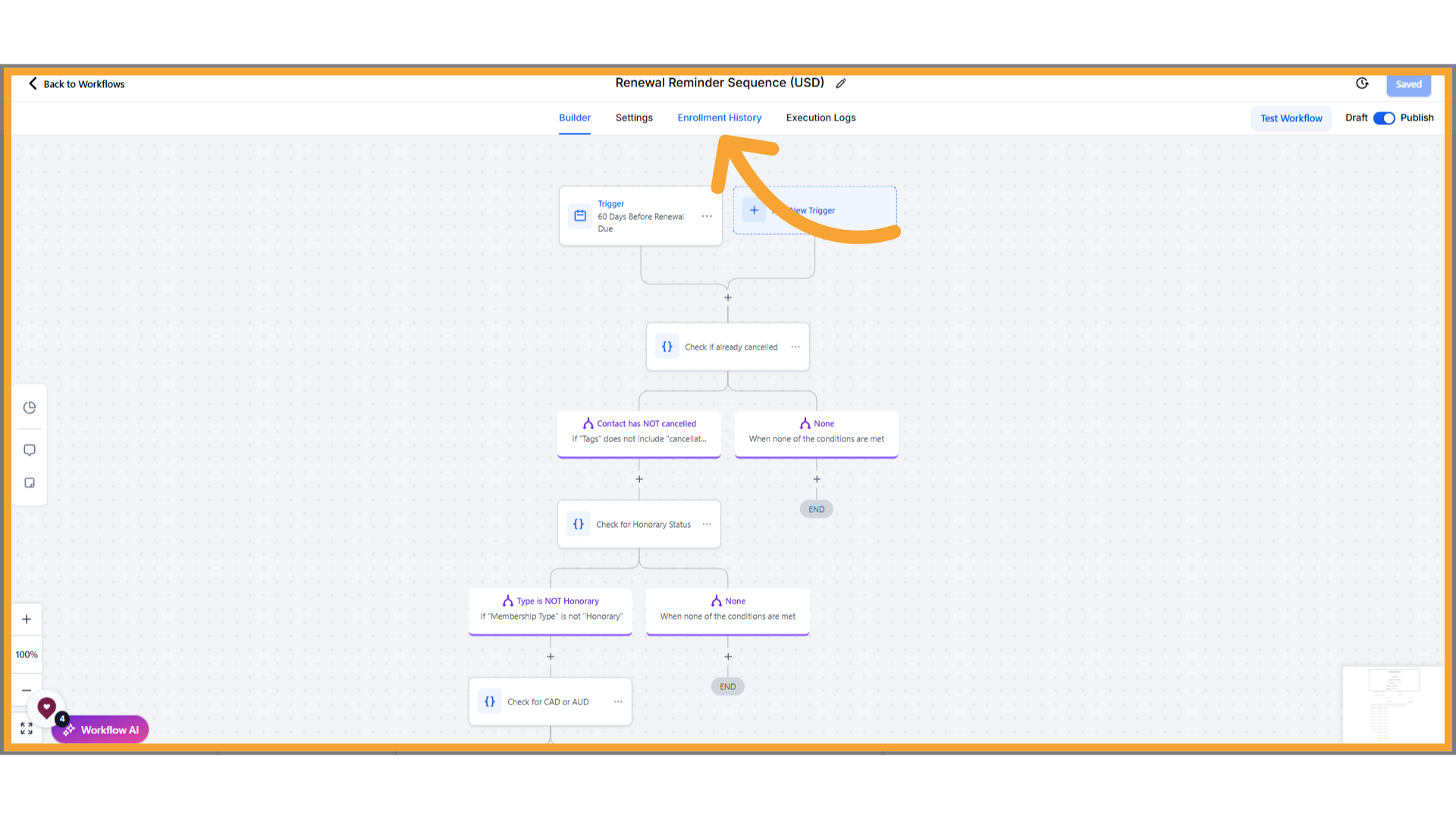
4. Click "Enrollment History"
Click on the "Enrollment History" tab.
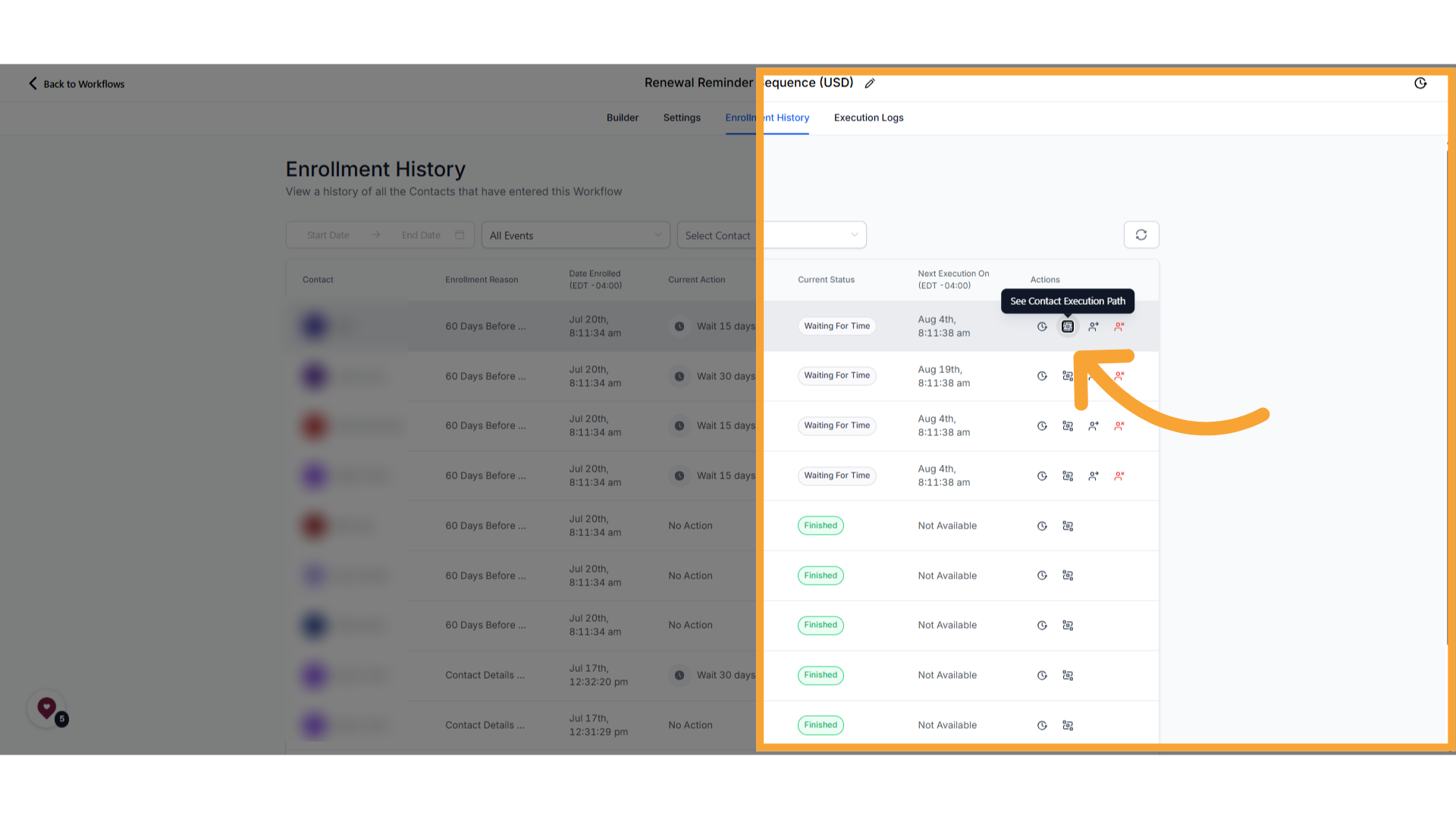
5. Click the Path icon
Click the icon that looks like a little path.
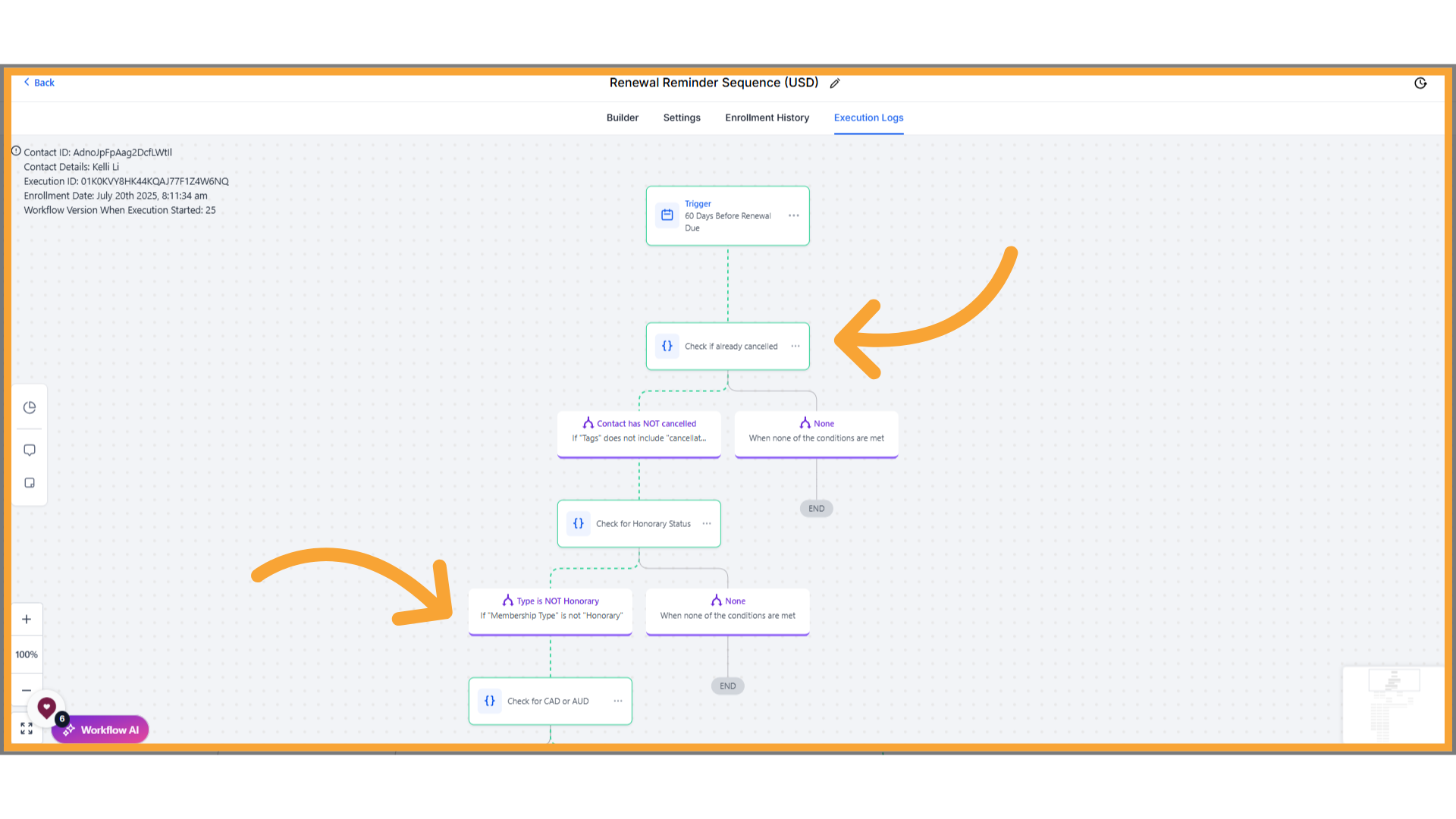
6. View Contact's Highlighted Path
You will see the contact's path through the workflow highlighted in flashing green. This is especially helpful if you want to see exactly which branches a contact went through.
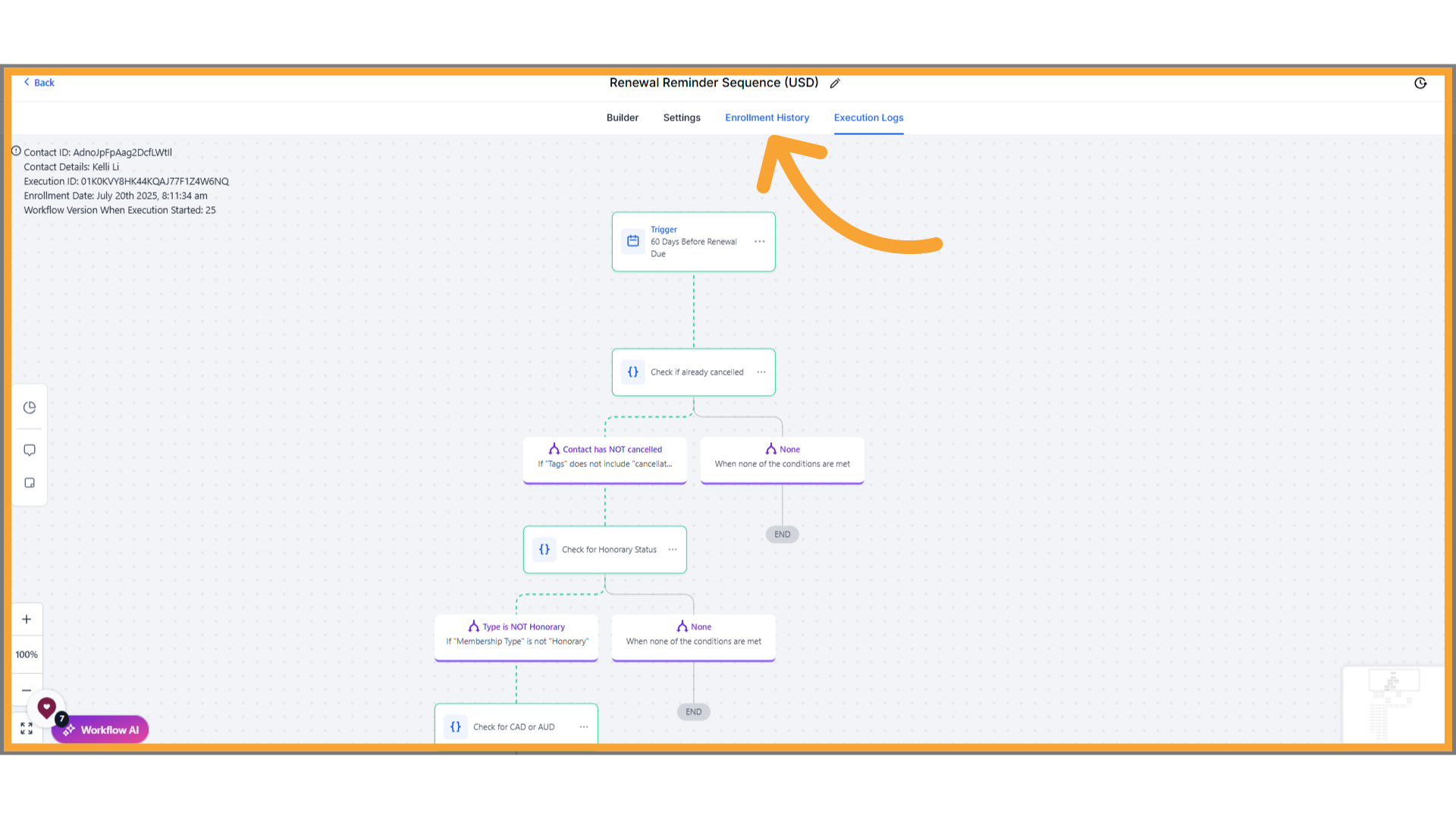
7. Click "Enrollment History"
Click "Enrollment History" to exit the path view and go back to the list.
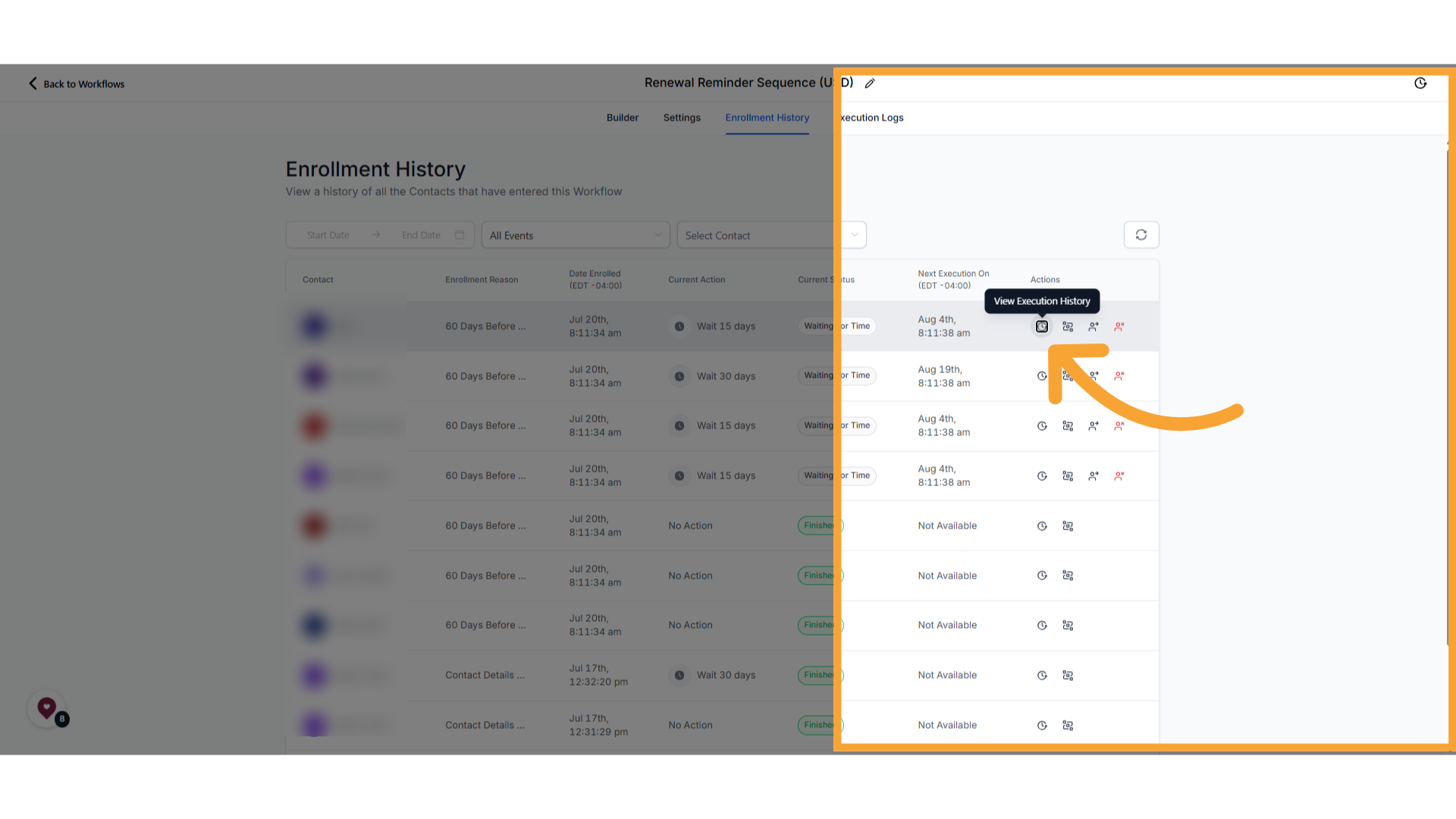
8. Click the History icon
Click the icon that looks like a clock to view the contact's history of steps in list format
9. View Execution Steps
On the Execution Logs tab, you will see all steps as a list. Click "View Details" if you want to see more about a specific step.
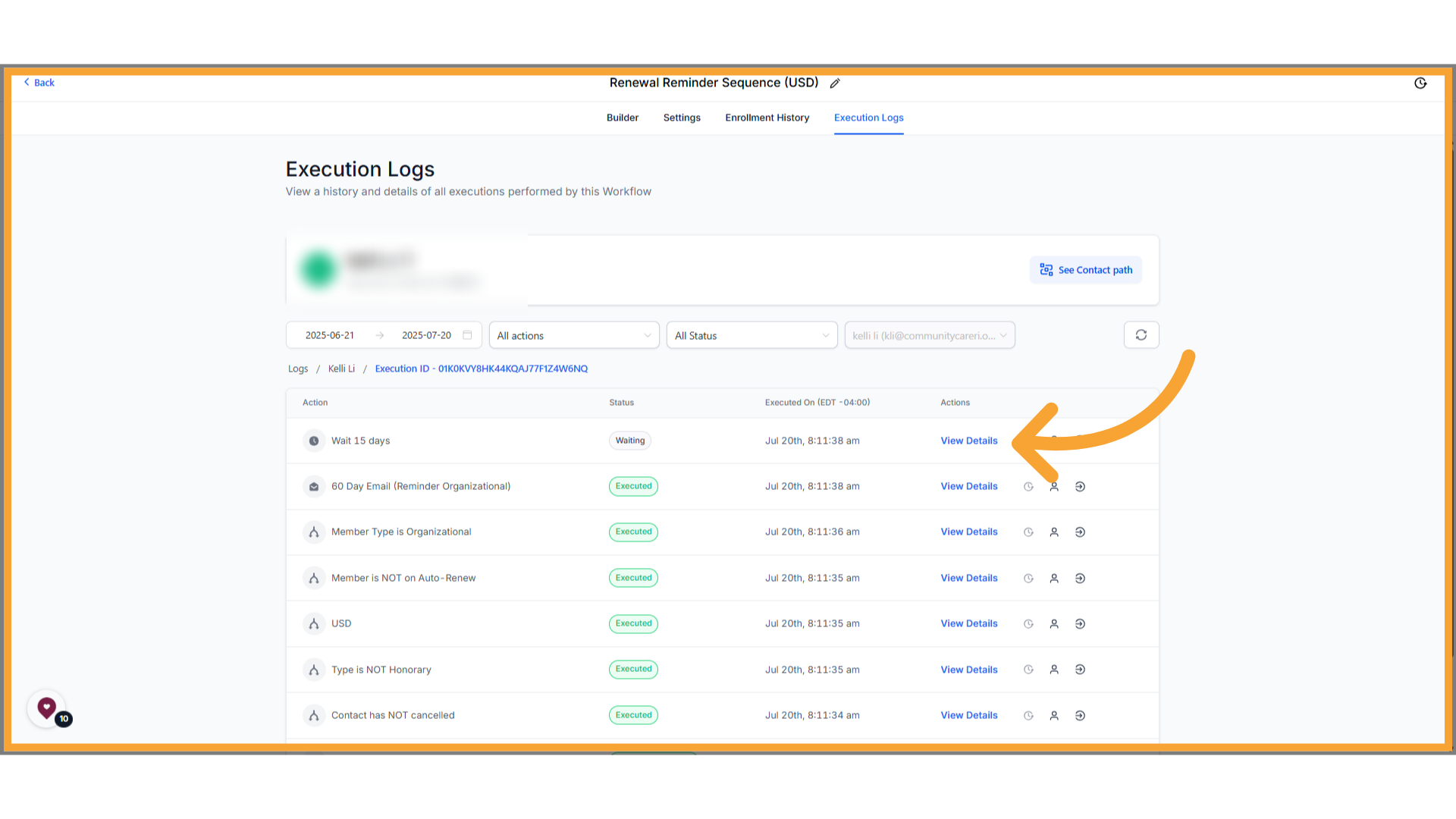
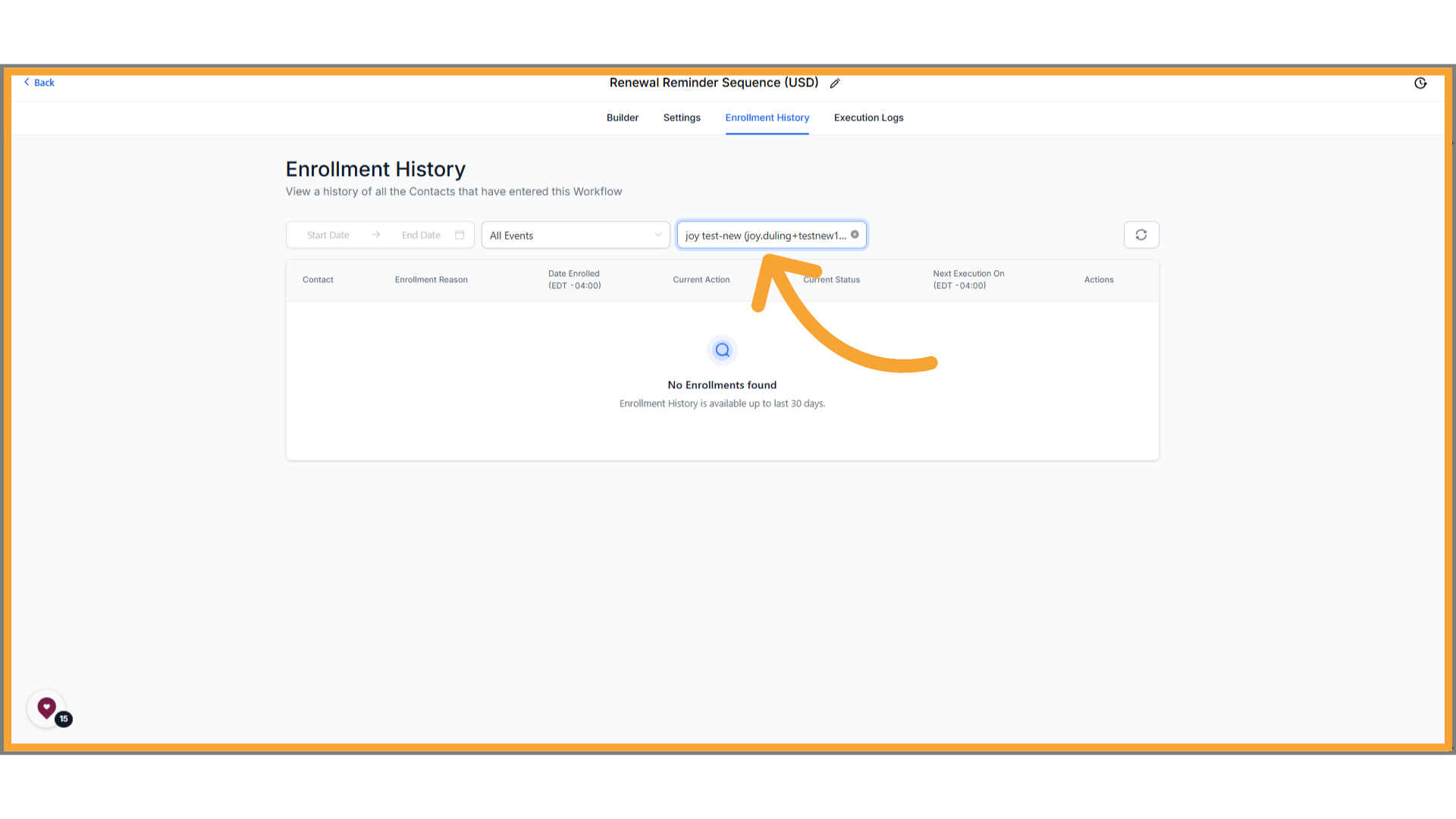
10. Note you can Search
Note that you can search for a specific contact to view their history. History only appears here for 30 days. If it has been longer than that or if the person has never been through the workflow, you'll see "No Enrollments Found" for the person.