Add GoDaddy Delegate Access
If your domain is registered at GoDaddy and you do not feel comfortable making DNS changes yourself, you can delegate access to us and we can make the change for you.
Here's how to do that:
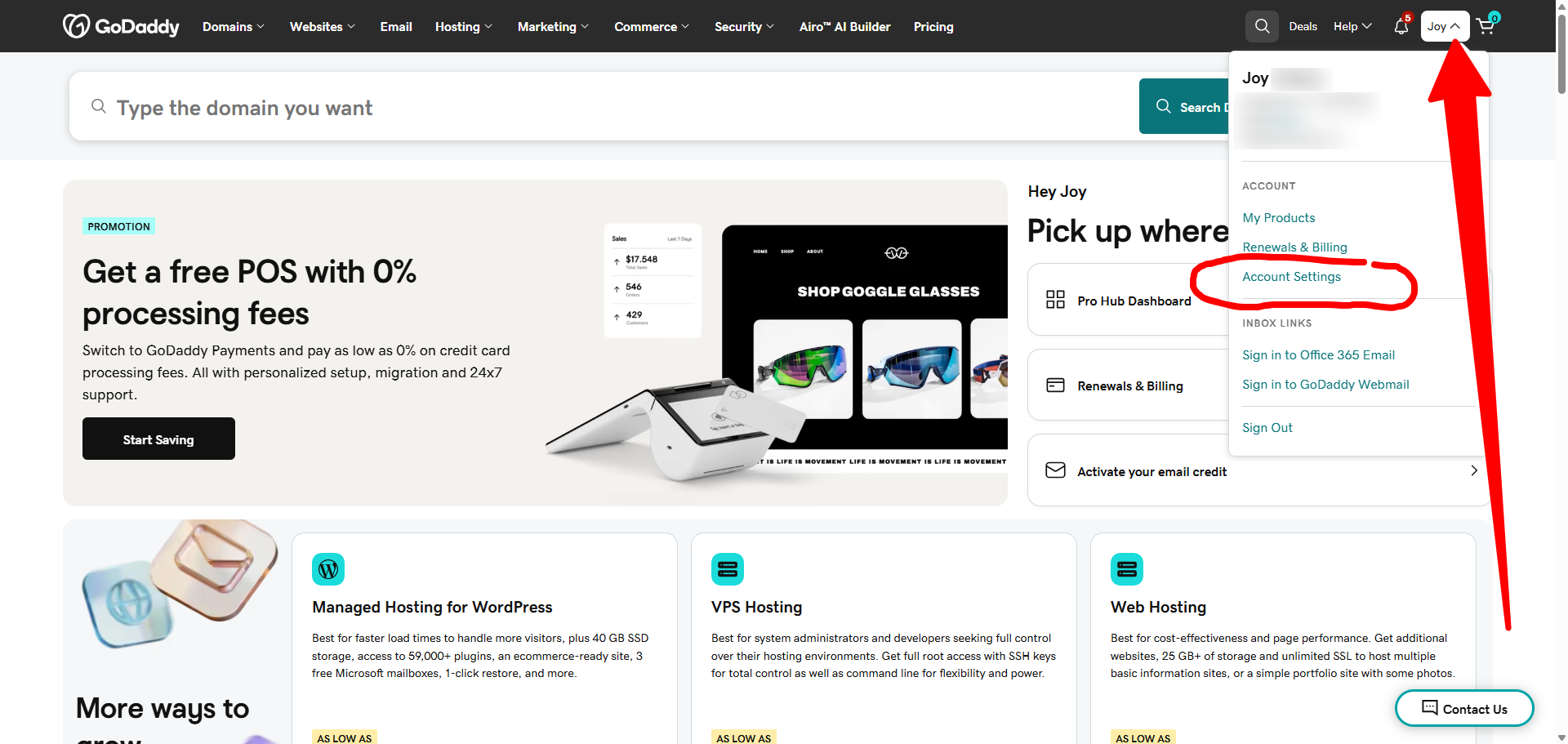
- Log into your GoDaddy account and click on your name (or initials) in the top-right corner.
- Choose Account Settings from the dropdown.
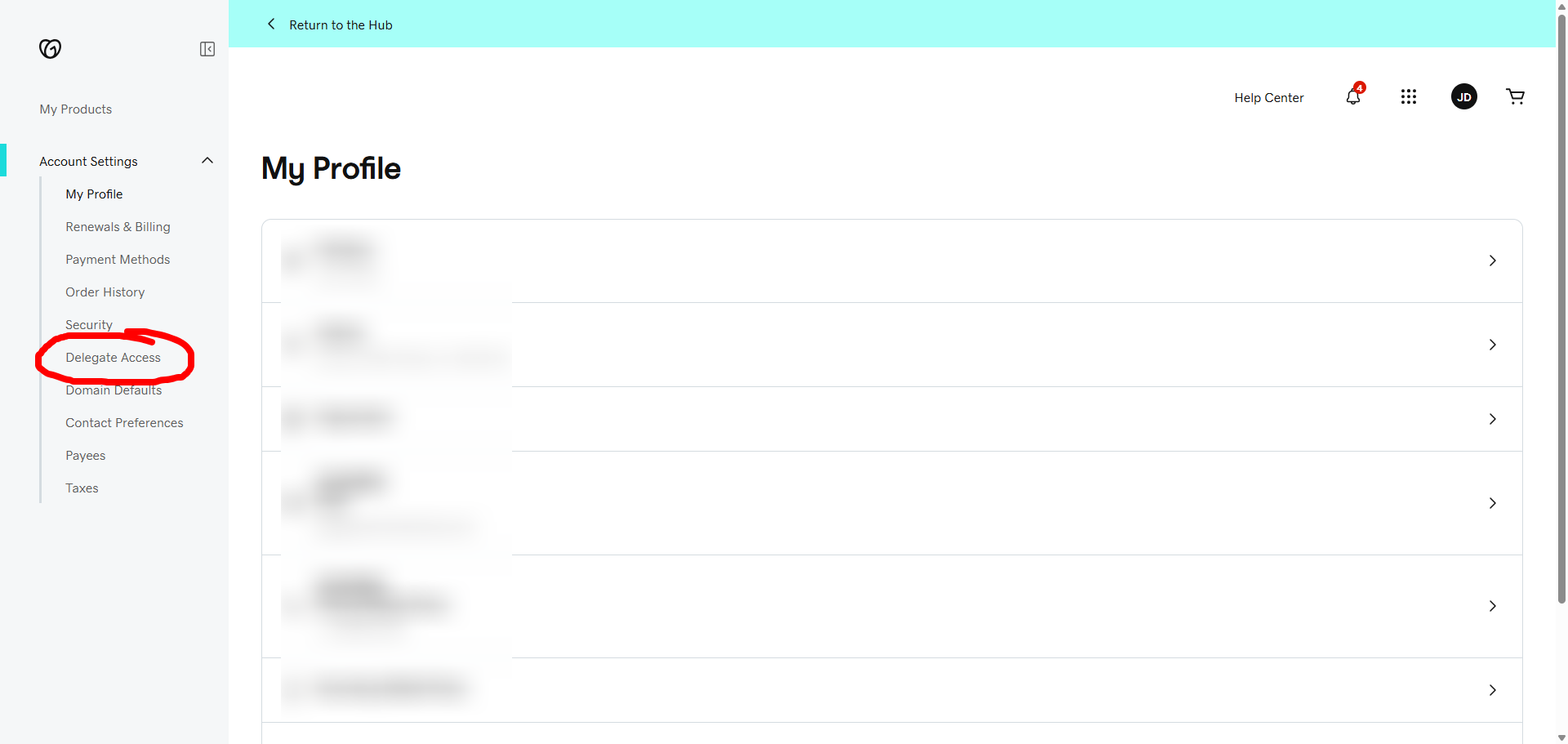
3. When the Account Settings open, look for "Delegate Access". The exact spot where it appears may vary based on what type of GoDaddy account you have.
You may be prompted to enter a code as a 2 factor authentication protection.
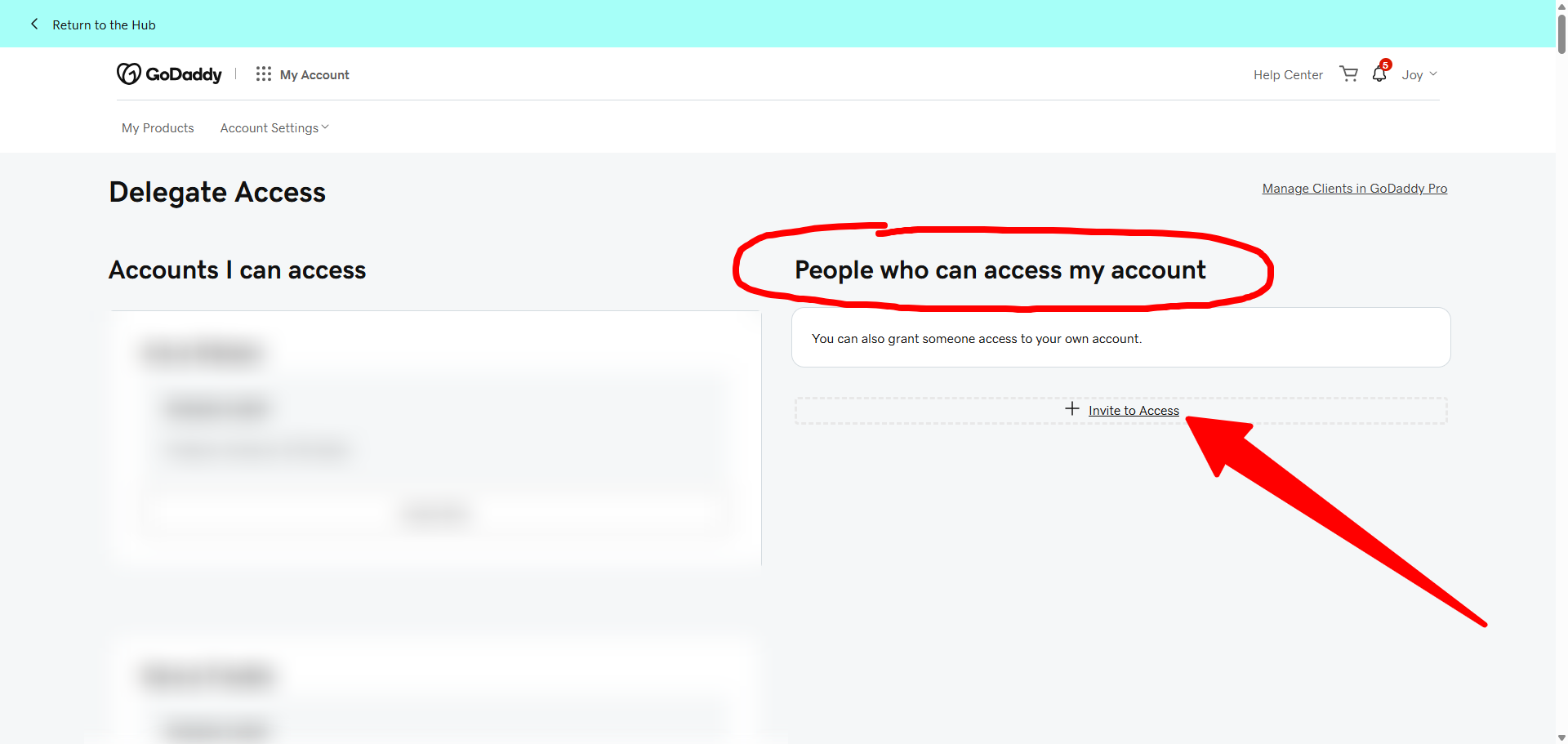
4. On the side that says "People who can access my account", click Invite to Access.
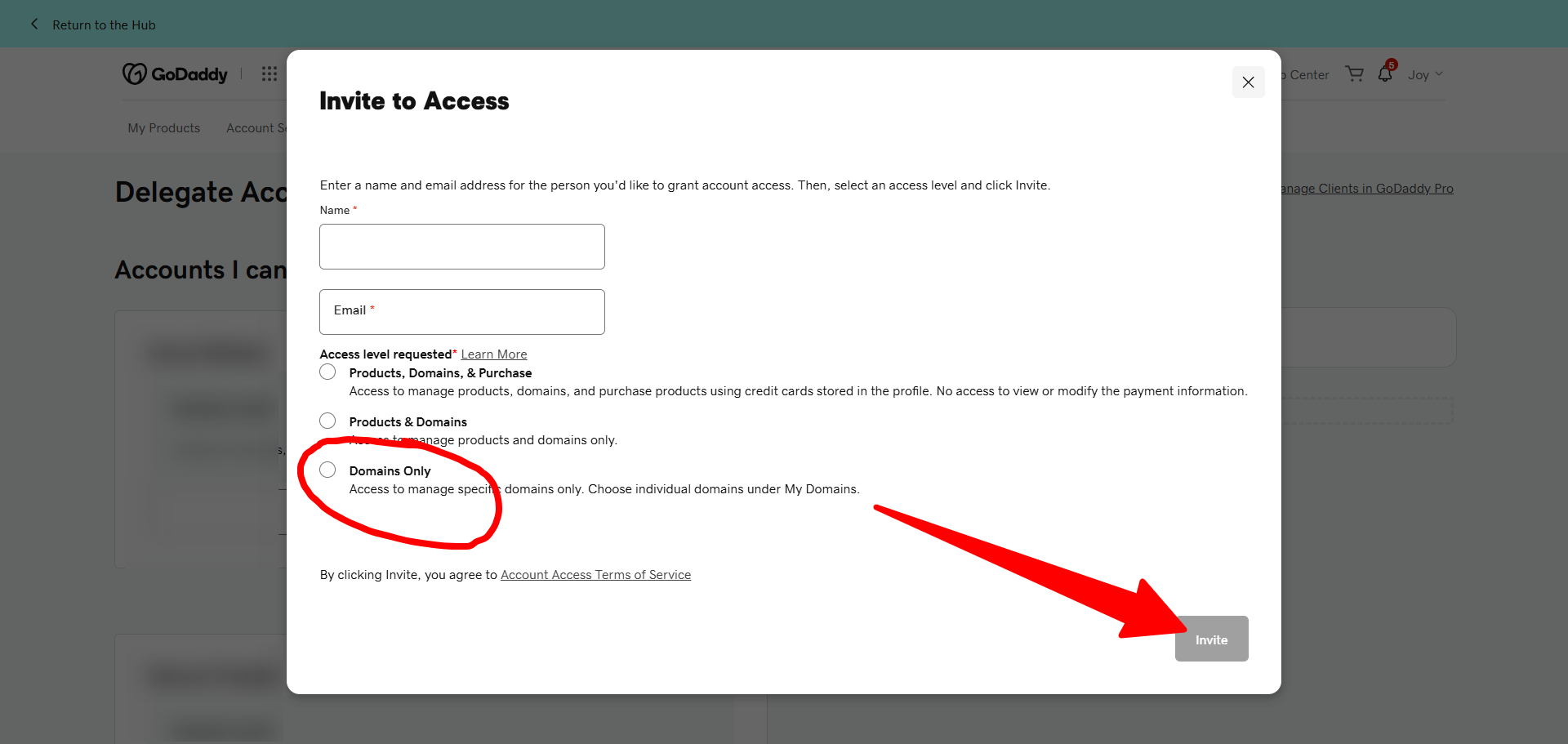
5. Create the invitation with the name and email provided to you by our JourneyCARE team.
Set the access level to Domains Only.
When all of the required fields are filled in, the Invite button will be clickable.
Once you've completed this step, the team member you've invited will receive an invitation and can make the necessary changes for your set-up.